2FA using an Authenticator app
Updated Jul 22nd, 2026
Updated 21st July, 2026
Who is this guide for?
Any Users
Osprey Approach supports two-factor authentication (2FA) using an authenticator app such as Google Authenticator, Microsoft Authenticator or Authy. Once configured, you will be required to enter a verification code when signing in.
Before You Begin
Ensure that:
- Two-factor authentication (2FA) has been enabled for your account.
- An authenticator app is installed on your mobile device.
Supported apps include:
- Microsoft Authenticator
- Google Authenticator
- Authy
Setting Up an Authenticator App
- Open Osprey Approach.
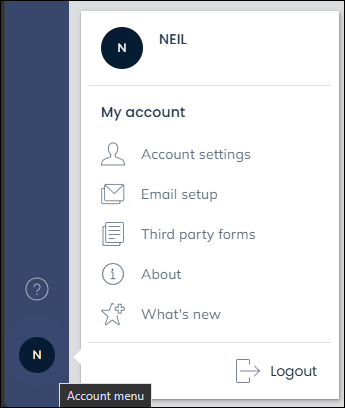
- Hover over Account menu in the side menu.
- Click Account settings.
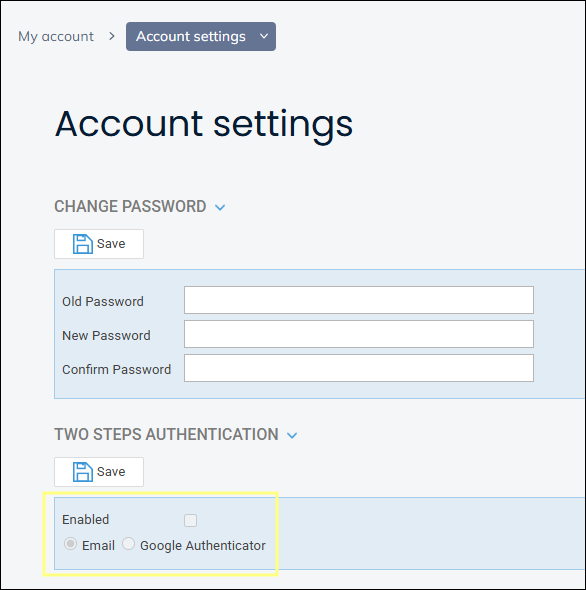
- Tick Enabled if it is not already ticked.
- Select Google Authenticator as your preferred authentication method.
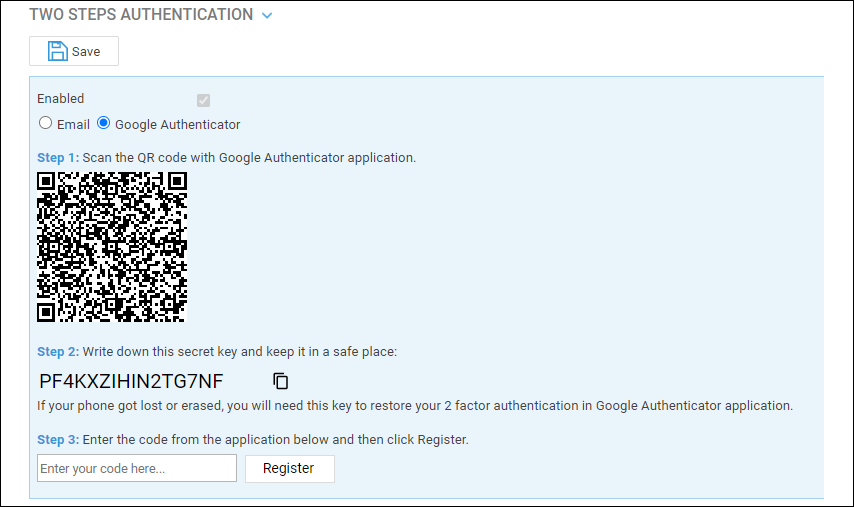
A QR code and setup key will be displayed.
Option 1: Scan the QR Code
- Open your preferred authenticator app.
- Choose Add Account or +.
- Select Scan QR Code.
- Scan the QR code displayed in Osprey.
Option 2: Enter the Setup Key Manually
- Open your authenticator app.
- Choose Add Account.
- Select Enter Setup Key or Enter Code Manually.
- Enter the setup key displayed in Osprey.
Complete Registration
- Your authenticator app will generate a six-digit verification code.
- Enter this code into Osprey.
- Click Register.
Once registration is successful, a confirmation message will be displayed.
Signing In
When you sign in to Osprey Approach:
- Enter your username and password.
- Open your authenticator app.
- Enter the current verification code shown for your Osprey account.
Verification codes refresh automatically every 30 seconds.
Lost or Replaced Your Device
If you no longer have access to the device containing your authenticator app, contact your Osprey supervisor for assistance.
Depending on your organisation’s security settings, your supervisor may need to reset two-factor authentication before you can sign in again.