Add a bank feed with Plaid
Updated Feb 18th, 2026
Who is this guide for?
Accounts Users and Accounts Supervisors
This guide will show you how to link your bank account to Osprey using Plaid
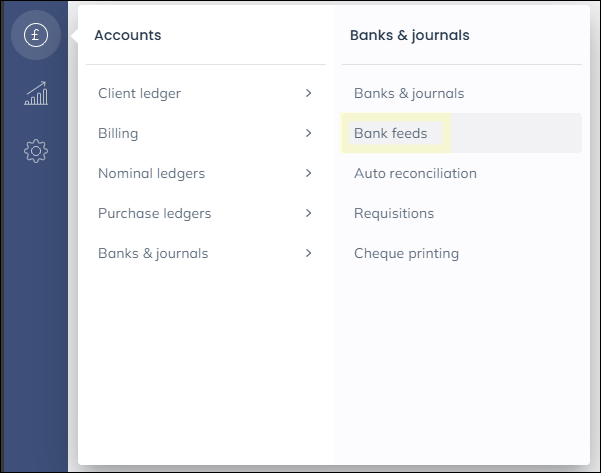
Navigate to Accounts > Banks & Journals > Bank feeds
You will see an option to click Add new either in the centre of the page or the top right


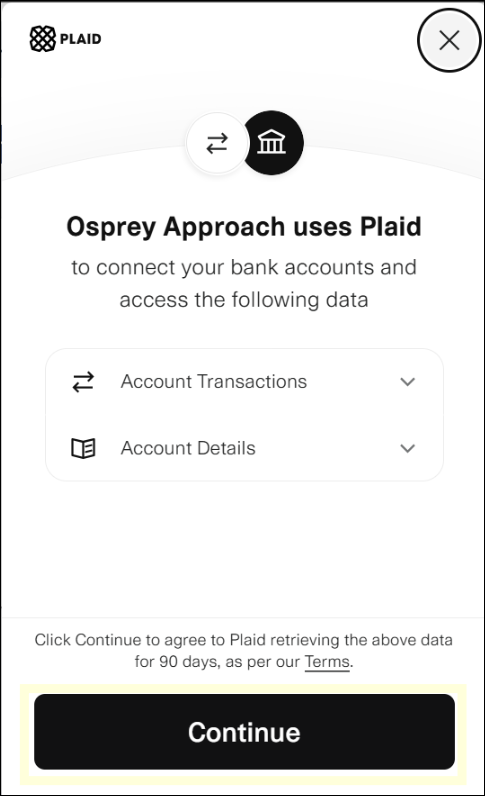
Click continue to allow Osprey Approach to use the Plaid service to connect to your bank
Choose your bank from the list
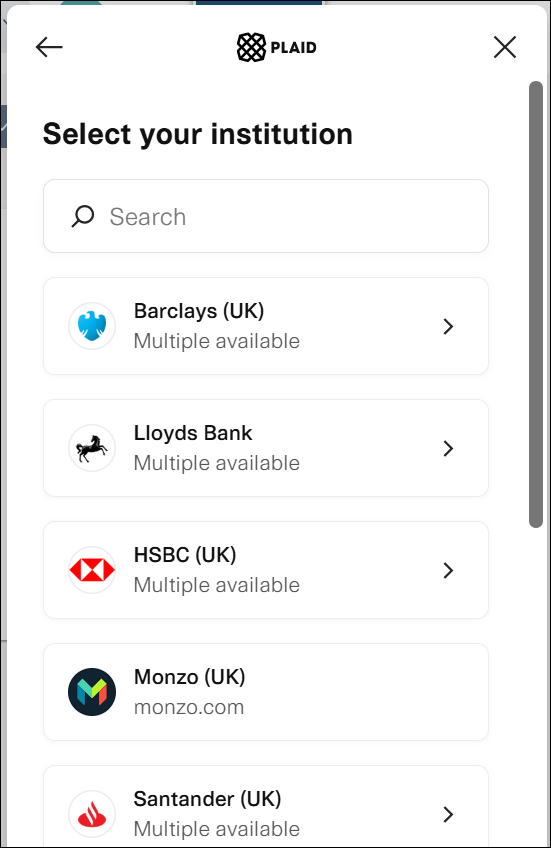
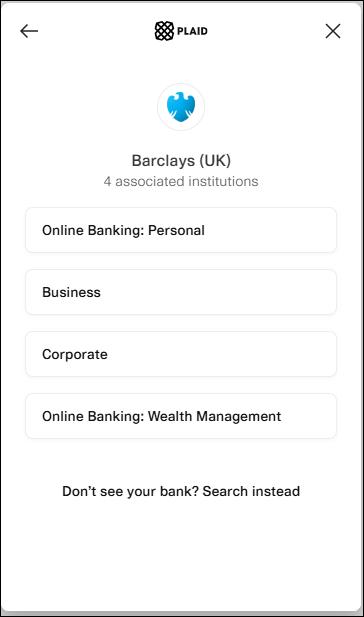
Where banks show multiple available you will see a further screen listing this account types
To link the bank account you can scan the QR code
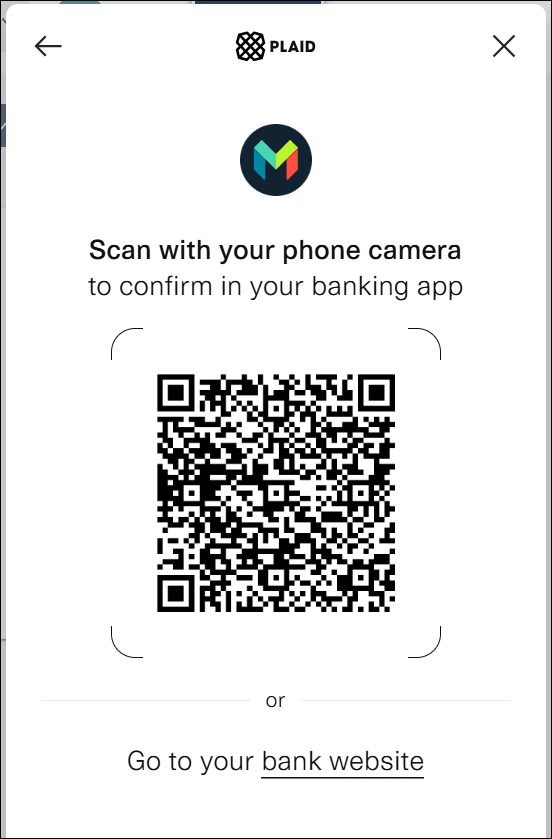
Or choose bank website where you will be taken to log into your bank and confirm the account to link.
Once successful you can link it to the bank in Osprey and you will see the bank account listed
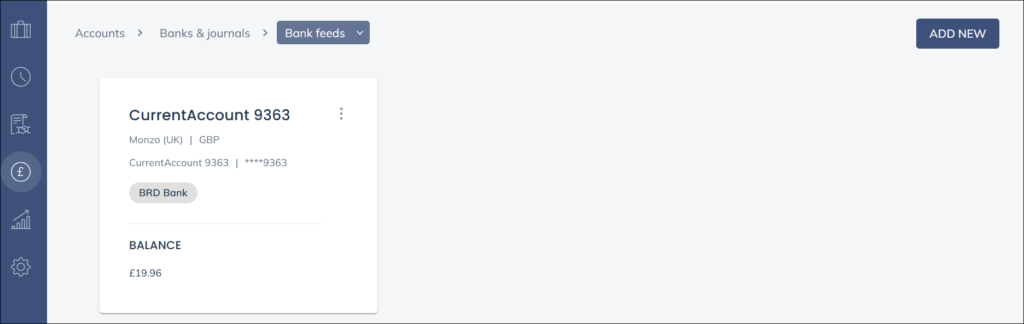
Click the bank name to view the transactions, the vertical ellipsis will show options to view transactions, Create payment link, Edit the account or Delete it.
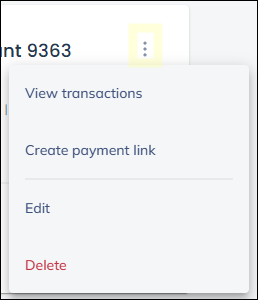
View Transactions
You can enter start and end dates for the transactions you wish to see
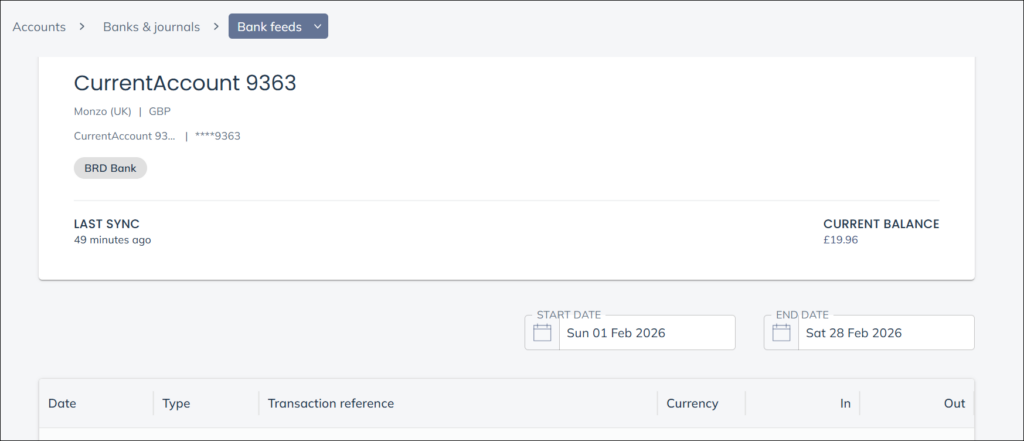
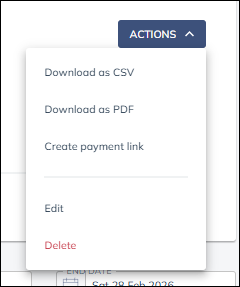
The actions button in the top right and corner allows you you choose from Download as CSV, Download as PDF, Edit and Delete.
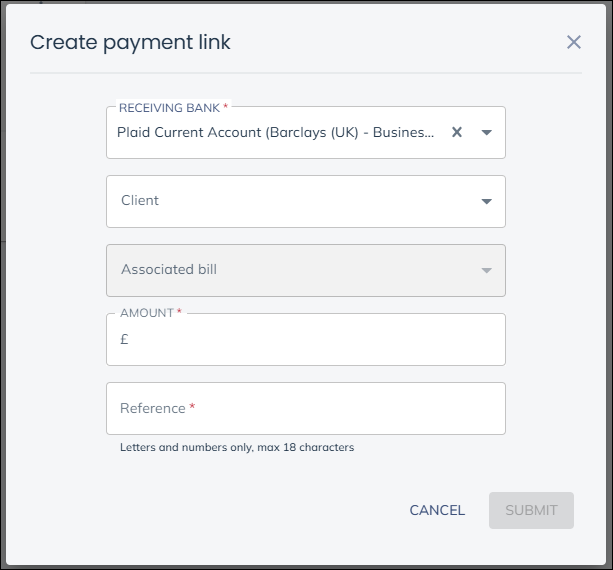
Create payment link
Choose Create payment link from the vertical ellipsis on the bank feed page or from the actions button on the transactions page.
Search for the client you wish to create the link for and then choose the associated bill from this list.
Click Submit
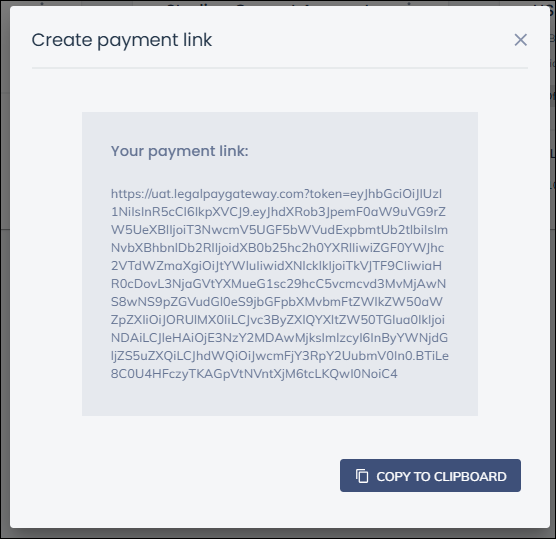
The created link will be shown and it can be copied to the clipboard.