Create and Assign Financial Templates
Updated Nov 5th, 2026
Who is this guide for?
System Supervisors and Accounts Supervisors
This guide will assist you with creating financial templates and assigning them to users
Financial templates control which financial tasks a user can carry out, such as posting out of period, authorising requisitions or running a period end. Our guide What are Financial Templates? > explains each option.
Changes to a template affect every user it is assigned to. If only one person needs extra rights, create a new template for them rather than editing a shared one.
Create a financial template
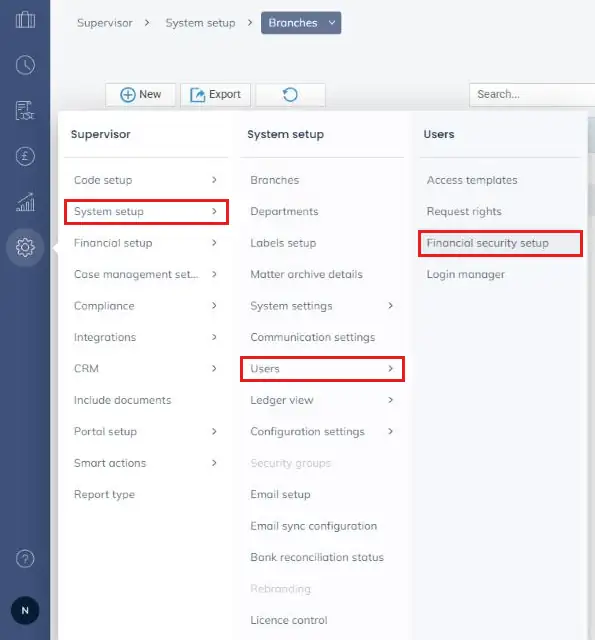
Hover over the Supervisor cog on the left hand navigation bar, then System setup, then Users, and click Financial security setup.
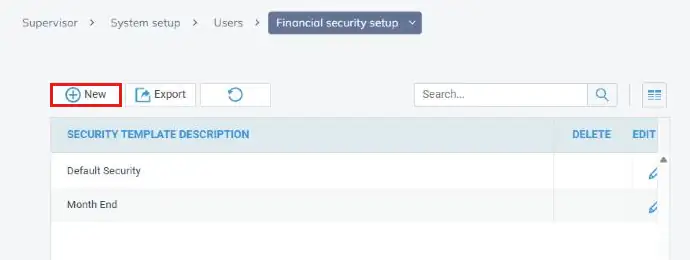
Your existing templates are listed. Click New.
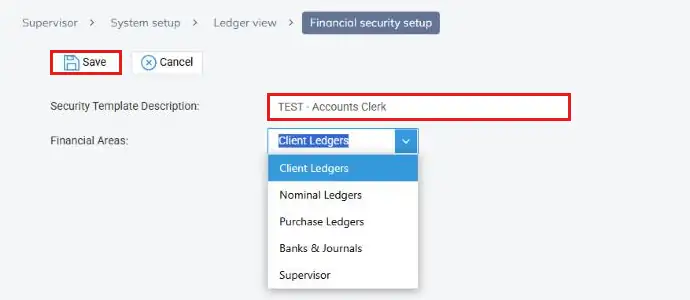
Enter a name in Security Template Description and click Save. The options for each financial area only appear once the template has been saved.
Choose the template options
Click the Edit (pencil) icon against your template.
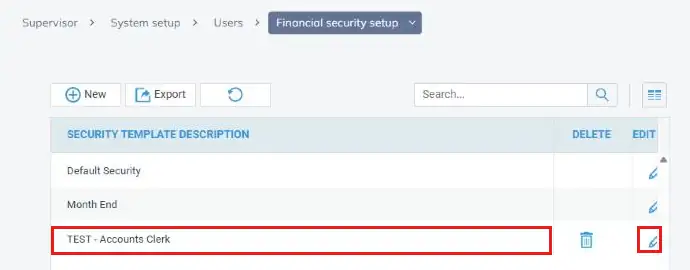
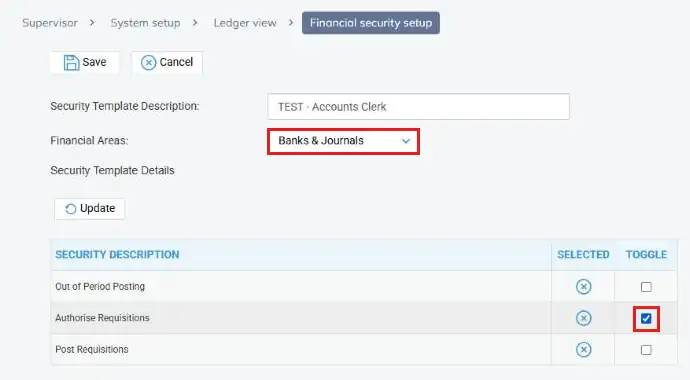
Choose an area from the Financial Areas drop-down and click Update to show its options. Tick the Toggle box against each option you want to change.
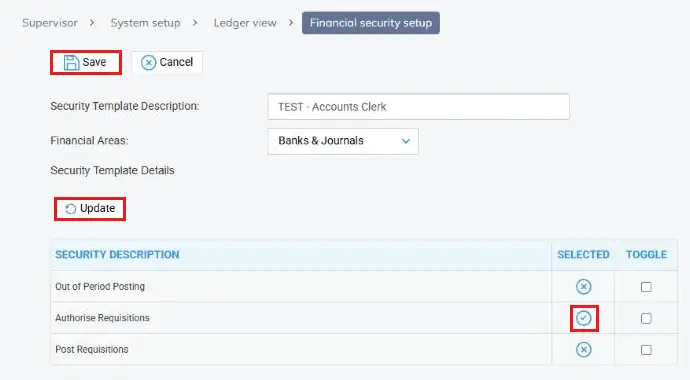
Click Update. The Selected column now shows a tick against each option that is switched on and a cross against each one that is off. Repeat this for each area you need, then click Save.
| Financial Area | Options |
| Client Ledgers | Out of Period Posting |
| Nominal Ledgers | Out of Period Posting |
| Purchase Ledgers | Out of Period Posting |
| Banks & Journals | Out of Period Posting, Authorise Requisitions, Post Requisitions |
| Supervisor | Run Period End, Run Year End |
Assign a template to a user
Hover over the Supervisor cog, then System setup, and click Users. Right-click the user and click Edit. Our guide Managing Users > explains the rest of this screen.
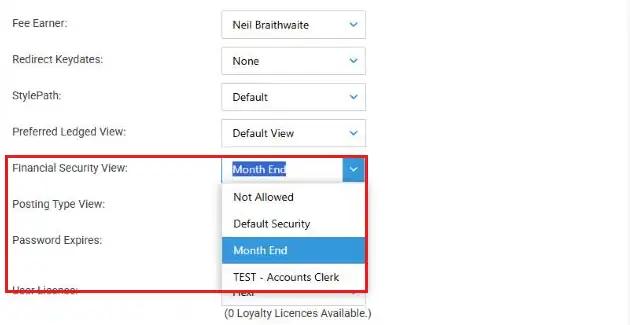
Choose the template from the Financial Security View drop-down, then click Save at the top of the page. Not Allowed switches off all financial options and is given to new users by default.