Formula Functions Reference
Updated Nov 11th, 2026
Who is this guide for?
Case Management Supervisors and System Supervisors
This guide will assist you with using each of the functions available when writing a formula in Osprey
Our guide Add and Use Formulae > explains how to create a formula and add it to a custom data page or standard document. This guide explains what each function does, with an example of the result, so you can build your own formulae. You don’t need any previous experience of formulae.
Only Supervisor level users are able to create formulae.
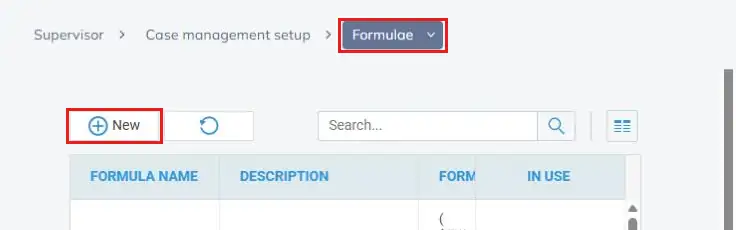
Click the Supervisor menu followed by Case management setup and Formulae. Click New to start a new formula, or right-click an existing formula and select Edit.
In the Formula section, choose a Function Categories option (DateTime, Logical, Math or Text) to list its functions. Double-click a function, operator or field to add it to the Formula Editor, or type the formula directly. Click Validate to check the formula before you save it.
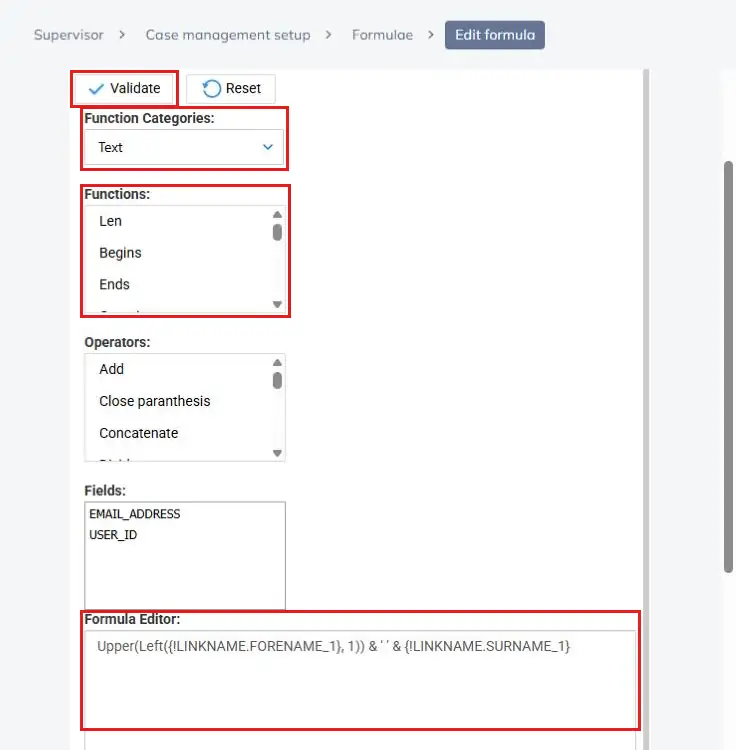
The hint shown next to each function in the list is not always accurate. Where the hint and this guide differ, follow this guide.
How a Formula Works
A formula is a set of instructions that Osprey follows to produce a value, such as a name, a date or an amount. You only need a few building blocks:
| Building block | What it means | Example |
| A function | An instruction, such as Upper (make it capitals) or Left (take letters from the start). | Upper |
| Brackets | Hold whatever the function works on. | Upper('smith') gives SMITH |
| Commas | Separate the pieces of information inside the brackets. The order matters. | Left('Smith', 1) gives S |
| Single quotes | Anything inside single quotes is used exactly as you type it, including spaces. | 'Dear ' |
& | Joins pieces together. | 'Dear ' & 'Mr Smith' gives Dear Mr Smith |
| A field | A value from the client or matter. Fields appear in curly brackets. | {!LINKNAME.SURNAME_1} |
| True / False | Some functions answer a yes/no question. Osprey shows the answer as True or False. | Begins('BRA0001', 'BRA') gives True |
Putting these together, 'Dear ' & {!LINKNAME.TITLE_1} & ' ' & {!LINKNAME.SURNAME_1} takes the text Dear, adds the client’s title, a space and their surname. For a client called Mr John Smith, it gives Dear Mr Smith.
When Osprey counts the letters in a piece of text, the first letter is position 0, the second is position 1, and so on. In HR2 9ED, the H is position 0 and the 9 is position 4. This matters for the Mid and Find functions.
- Use single quotes, not double quotes. You can’t include an apostrophe inside quoted text.
- Capital letters don’t matter in function names:
UpperandUPPERboth work. - Capital letters do matter when comparing text: Osprey treats
'yes'and'Yes'as different. - If a formula can’t work something out (for example, it asks for more letters than a field holds), the result is left blank rather than showing an error.
Text Functions
These work with words, names, addresses and references.
| Function | What it does | Example | Notes |
Len(text) | Counts the characters in the text. | Len('John Smith') gives 10 | Spaces count as characters. A blank field gives 0, so this is a handy way to check whether a field has been filled in. |
Left(text, number) | Takes letters from the start of the text. | Left('HR2 9ED', 3) gives HR2 | If you ask for more letters than the text has, the result is blank. |
Right(text, number) | Takes letters from the end of the text. | Right('HR2 9ED', 3) gives 9ED | If you ask for more letters than the text has, the formula won’t validate. |
Mid(text, start, number) | Takes letters from the middle of the text. | Mid('HR2 9ED', 4, 3) gives 9ED | Inside the brackets: the text, the position to start at, and how many letters to take. Positions start at 0, so the 9 is position 4. All three are needed. |
Find(text, look for, start) | Finds where something first appears in the text and gives its position. | Find('John Smith', ' ') gives 4 | Put the text to search first, then what you’re looking for (the hint in the list shows these the other way round). Positions start at 0. If it isn’t found, the result is -1. Capital letters must match. Start is optional. |
Begins(text, check) | Checks whether the text starts with something. | Begins('BRA0001', 'BRA') gives True | Handy for checking a reference. Capital letters must match. |
Ends(text, check) | Checks whether the text ends with something. | Ends('jane@firm.co.uk', '.co.uk') gives True | Capital letters must match. |
Contains(text, check) | Checks whether something appears anywhere in the text. | Contains('Purchase of 344 Broad St.', 'Purchase') gives True | Capital letters must match. To ignore them, make the text lower case first: Contains(Lower(text), 'purchase'). |
Substitute(text, old, new) | Replaces every occurrence of one piece of text with another. | Substitute('Flat 1, 2 High St', ',', '') gives Flat 1 2 High St | Every match is replaced. Capital letters must match. Use '' (two single quotes) as the new text to remove something. |
Text(value) | Turns a number or date into text. | Text(Date(2026, 10, 16)) gives 16/10/2026 | You can’t choose a format: Osprey accepts a format such as 'dd MMMM yyyy' but ignores it. A date field also shows its time (for example 13/12/2024 00:00:00), so use DateOnly for date fields. |
Trim(text) | Removes spaces from the start and end of the text. | Trim(' John Smith ') gives John Smith | Spaces in the middle are kept. Useful for tidying details that were typed with extra spaces. |
TrimStart(text) / TrimEnd(text) | Removes spaces from the start only, or the end only. | TrimEnd('Smith ') gives Smith | Use Trim unless you need to keep spaces on one side. |
PadLeft(text, length) / PadRight(text, length) | Adds spaces before or after the text until it reaches the length you choose. | PadLeft('42', 6) gives ‘ 42’ | Pads with spaces only. If the text is already longer, it’s left as it is. |
Lower(text) / Upper(text) | Changes the text to lower case or capitals. | Upper('hr2 9ed') gives HR2 9ED | There’s no function to capitalise just the first letter of a name. See the Examples section for a way to do this. |
Hyperlink(web address, link text, target) | Creates a clickable link. | Hyperlink('https://example.com', 'Example') | Target is optional. The result is a link, so it’s best used on its own rather than joined to other text. |
Image(web address, description, height, width) | Displays a picture from a web address. | Image('https://…/logo.png', 'Logo') | Height and width are optional. |
Logical Functions
These let a formula make a decision, such as showing different wording depending on a field.
| Function | What it does | Example | Notes |
If(question, if yes, if no) | Asks a question and gives one result if the answer is yes and another if it’s no. | If(1500 > 1000, 'Over limit', 'Within limit') gives Over limit | All three parts are needed. You can put one If inside another to check more than one thing. |
Case(value, match 1, result 1, …, otherwise) | Compares a value with a list of options and gives the matching result. | Case('P', 'P', 'Purchase', 'S', 'Sale', 'Other') gives Purchase | Tidier than several If functions inside each other. The final “otherwise” result is required. |
question AND question | Yes only if both questions are yes. | If('Yes' = 'Yes' AND 1500 > 1000, 'Chase client', 'No action') gives Chase client | Write AND between the two questions. |
question OR question | Yes if either question is yes. | If('Sale' = 'Purchase' OR 'Sale' = 'Sale', 'Property matter', 'Other') gives Property matter | Write OR between the two questions. |
NOT(question) | Turns yes into no, and no into yes. | If(NOT(Contains('Purchase of 344 Broad St.', 'Sale')), 'Not a sale', 'Sale') gives Not a sale | For a simple comparison, <> (is not equal to) is often easier to read. |
Questions use these symbols:
| Symbol | Means | Example |
= | is equal to | {!X} = 'Yes' |
<> | is not equal to | {!X} <> 'Yes' |
> / < | is more than / is less than | 1500 > 1000 |
>= / <= | is at least / is at most | 1500 >= 1500 |
Math Functions
These work with amounts and other numbers. You can also use + (add), - (subtract), * (multiply), / (divide) and ^ (to the power of), with brackets to control the order. For example, 1500 * 0.2 gives 300.
| Function | What it does | Example | Notes |
Round(number, decimal places) | Rounds a number to the number of decimal places you choose. | Round(1234.5678, 2) gives 1234.57 | When a number is exactly halfway, Osprey rounds to the nearest even number: Round(2.5, 0) gives 2, but Round(3.5, 0) gives 4. Both parts are needed. |
Ceiling(number) | Rounds up to the next whole number. | Ceiling(2.1) gives 3 | Useful for rounding up part hours or part units. |
Floor(number) | Rounds down to the whole number below. | Floor(2.9) gives 2 | Drops anything after the decimal point. |
Max(number, number) / Min(number, number) | Gives the larger or the smaller of two numbers. | Max(1500, 2000) gives 2000 | Works with exactly two numbers. To compare three, put one inside the other: Max(a, Max(b, c)). |
Abs(number) | Removes a minus sign. | Abs(1200 - 1500) gives 300 | Useful when you want the size of a difference, whichever way round it is. |
Sign(number) | Shows whether a number is positive (1), negative (-1) or zero (0). | Sign(1200 - 1500) gives -1 | Useful for checking whether a balance is in credit or overdrawn. |
Pow(number, power) | Multiplies a number by itself the number of times you choose. | Pow(2, 3) gives 8 | 2^3 does the same. |
Sqrt(number) | Gives the square root. | Sqrt(16) gives 4 | Rarely needed in case management. |
Exp, Log(number, base), Log10, Sin, Cos, Tan, Asin, Acos, Atan | Scientific functions. | Log(8, 2) gives 3 | Rarely needed in case management. Log needs both the number and the base. |
Date and Time Functions
These work with dates, such as completion dates, limitation dates and review dates.
| Function | What it does | Example | Notes |
Date(year, month, day) | Creates a date. | Date(2026, 10, 16) gives 16/10/2026 | Put the year first, then the month, then the day. |
Today() / Now() | Today’s date, or today’s date and the current time. | Today() gives today’s date | Nothing goes in the brackets. Custom data pages show the date only. |
DateTime(year, month, day, hour, minute, second) | Creates a date with a time. | DateTime(2026, 10, 16, 14, 30, 0) | Custom data pages show the date only. |
DateOnly(date) | Removes the time from a date. | DateOnly({!RC_DATES.I_COMPLTIONDATE}) gives 13/12/2024 | Use this whenever you join a date field to other text. Otherwise the time (00:00:00) appears after the date. |
Day(date) / Month(date) / Year(date) | Gives the day, month or year of a date as a number. | Year(Date(2026, 10, 16)) gives 2026 | Combine with Date to build a related date, for example the first of January in the same year: Date(Year({!date}), 1, 1). |
DayOfWeek(date) | Gives the name of the day. | DayOfWeek(Date(2026, 12, 25)) gives Friday | The list also shows a version with a format option (DayOfWeekFormat). In testing, it always gave the full day name, whatever the format. |
IsWeekendDay(date) | Checks whether a date is a Saturday or Sunday. | IsWeekendDay(Date(2026, 10, 17)) gives True | Useful for flagging deadlines that fall at a weekend. It doesn’t know about bank holidays: 25 December 2026 (a Friday) gives False. |
DateAddDays(date, days) | Adds days to a date. | DateAddDays(Date(2026, 10, 16), 14) gives 30/10/2026 | Use a minus number to go back: DateAddDays(Date(2026, 10, 16), -7) gives 09/10/2026. |
DateAddMonths(date, months) | Adds months to a date. | DateAddMonths(Date(2026, 10, 16), 3) gives 16/01/2027 | If the day doesn’t exist in the new month, the last day of the month is used: 31 January plus one month gives 28/02/2026. |
DateAddYears(date, years) | Adds years to a date. | DateAddYears(Date(2026, 10, 16), 6) gives 16/10/2032 | Useful for retention or review dates. 29 February moves to 28 February in a non-leap year. |
DateAddHours / DateAddMinutes / DateAddSeconds(date, number) | Adds hours, minutes or seconds. | DateAddHours(DateTime(2026, 10, 16, 23, 0, 0), 2) gives 17/10/2026 | Custom data pages show the date only, so the time won’t be visible. |
IsLeapYear(year) | Checks whether a year is a leap year. | IsLeapYear(2028) gives True | Needs a year, not a full date. For a date field use IsLeapYear(Year({!date})). |
DaysInMonth(year, month) | Gives the number of days in a month. | DaysInMonth(2026, 2) gives 28 | Useful for apportioning a monthly amount by days. |
DateDiff(first date, second date, unit) | Works out the time between two dates. | DateDiff(Date(2026, 10, 1), Date(2026, 10, 16), 'day') gives 15 | The unit must be one of those in the table below. The answer is always a positive number, whichever date comes first. |
EmptyDate() | Meant to give a blank date. | — | In testing, any formula using EmptyDate failed to validate. To check whether a date field is blank, use If(Text({!date}) = '', 'No date', 'Has date'). |
The unit for DateDiff goes in single quotes and must be written exactly as below (capital letters don’t matter). Other spellings, such as 'days' or 'week', won’t validate.
| Unit | What it counts | Example |
'day' | Whole days. Part days are ignored. | 1 October to 16 October gives 15 |
'hour' | Hours, including part hours. | 10:00 to 11:30 gives 1.5 |
'min' | Minutes. | 10:00 to 11:30 gives 90 |
'sec' | Seconds. | 10:00:00 to 10:00:45 gives 45 |
'month' | How many times the month changes, not complete months. | 31 January to 1 February gives 1 |
'year' | How many times the year changes, not complete years. | 31 December 2025 to 1 January 2026 gives 1 |
Because ‘month’ and ‘year’ count changes rather than complete months or years, don’t use them to work out someone’s age or how long a matter has been open. Use ‘day’ instead.
Fields and Blank Values
- If a number field used in a calculation is blank, the whole result is blank. To treat a blank as 0, use
If({!FW_APPORT.FW_SC_AMNT} = '', 0, {!FW_APPORT.FW_SC_AMNT}) + 1. - To check whether any field has been filled in, use
If(Len({!field}) = 0, 'Not entered yet', 'Entered'). - On a custom data page, number results are shown to 2 decimal places, so
1500 * 0.2shows as 300.00. When a number is joined to text, use Round to control the decimal places:'£' & Round(1234.5678, 2)gives £1234.57. Thousands separators aren’t added. - A result made up only of digits can sometimes be shown as a number and lose its leading 0. In testing, 07700900123 showed as 7700900123.00. Adding text in front avoids this:
'Tel: ' & Substitute('07700 900123', ' ', '')gives Tel: 07700900123.
Examples
| To do this | Use |
| Start a letter | 'Dear ' & {!LINKNAME.TITLE_1} & ' ' & {!LINKNAME.SURNAME_1} |
| Capitalise the first letter of a name | Upper(Left({!LINKNAME.FORENAME_1}, 1)) & Lower(Mid({!LINKNAME.FORENAME_1}, 1, Len({!LINKNAME.FORENAME_1}) - 1)) |
| Show the completion date in a sentence | 'Completion is due on ' & DateOnly({!RC_DATES.I_COMPLTIONDATE}) |
| Count the days since the matter was opened | DateDiff({!MATTER.DATE_OPENED}, Today(), 'day') |
| Build a file reference | {!MATTER.FEE_EARNER_ID} & '/' & {!MATTER.CLIENT_NO} & '/' & {!MATTER.MATTER_NO} |
| Take the first part of a postcode | Left({!CLIENT.POSTCODE}, Find({!CLIENT.POSTCODE}, ' ')) |
| Flag a deadline that falls at a weekend | If(IsWeekendDay(DateAddDays(Today(), 14)), 'Weekend - check deadline', 'Weekday') |
If You Have Used Excel Before
Many functions share a name with Excel functions but behave differently. The main differences are:
- Mid and Find count positions from 0, not 1. Find has the text to search first, and gives -1 rather than an error when nothing is found.
- AND and OR go between the questions, not as
AND(a, b). - Text comparisons are case-sensitive.
- If and Case need every part, including the “if no” and “otherwise” results.
- Round rounds exact halves to the nearest even number.
- Max and Min take exactly two numbers. Ceiling and Floor take one. Log needs a base.
- Left gives a blank, and Right fails, if you ask for more letters than the text has.
- A blank number field makes the result blank rather than being treated as 0.
- Text ignores any format you give it.
- DateDiff has no
"d"/"m"/"y"units, and its month and year results count changes rather than complete periods.