Install and use the Osprey Outlook add-in for Office 365
Updated Feb 24th, 2026
Who is this guide for?
Case Workers
This guide will go through the steps required to install and use the Osprey Outlook add-in for Office 365
The Osprey Approach Outlook add-in can be installed from Office.com, or directly from Outlook, and will automatically be synced to all your devices.
Install from Outlook
To install the add-in, open Outlook, navigate to the Home tab and select All Apps.

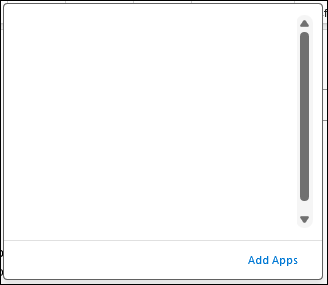
and then Add Apps.
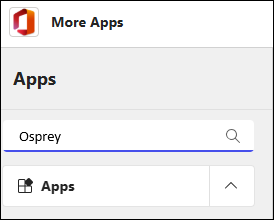
Search for Osprey
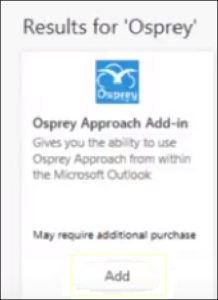
and select Add.
Install from Office online
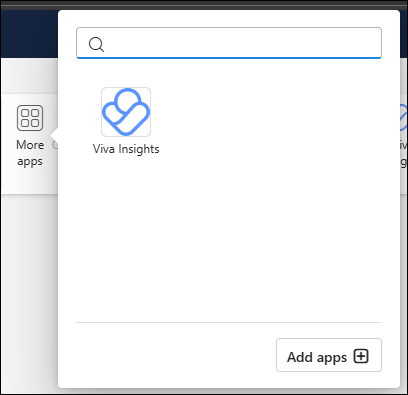
Go to https://outlook.office.com/mail/ and select More apps from the Home ribbon.

Alternatively, open an email, click the Apps button.

Click Add apps
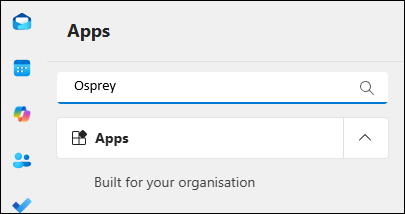
Search for ‘Osprey’,
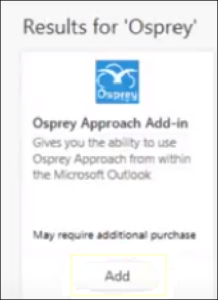
and click Add.
The Office 365 add-in features the ability to export any emails and attachments.
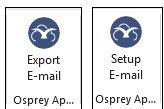
To Export, select the email and click either Export Email or Setup Email buttons
First time use
Enter your Osprey URL and credentials.
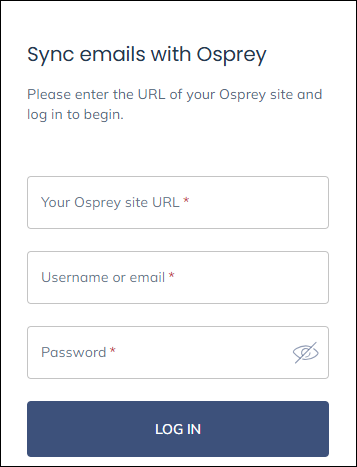
If this is the first time you’ve used the add-in you may be asked to configure your account
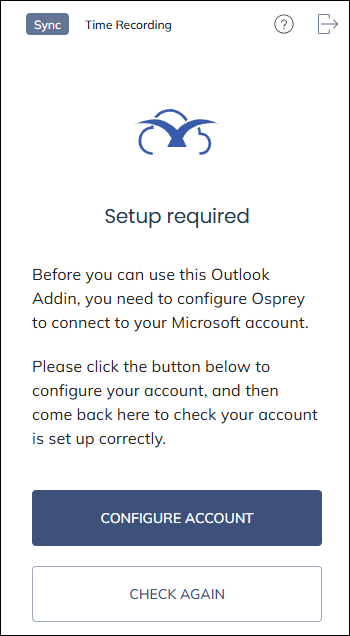
Click Configure account to be taken to your Osprey site to sign in.
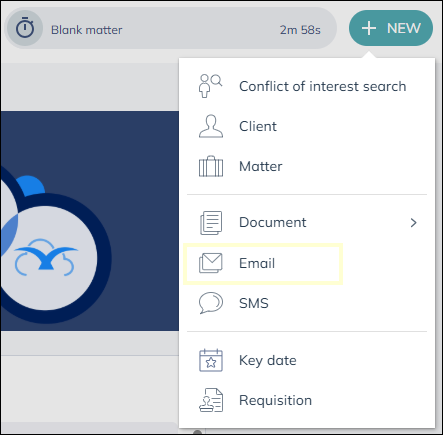
Once you have signed in, click New action button then email
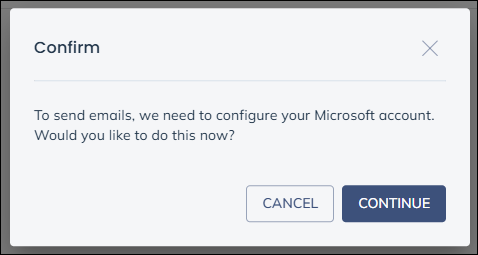
You will see a notice that your Microsoft account needs to be configured, click Continue to do so
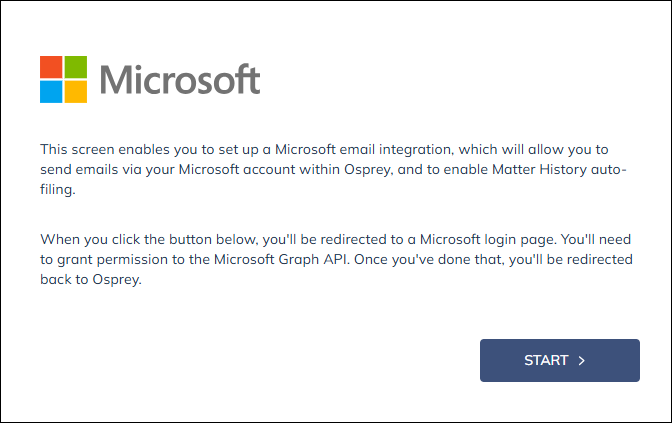
You will see a prompt from Microsoft, please click Start and sign into the Microsoft account you wish to connect to Osprey.
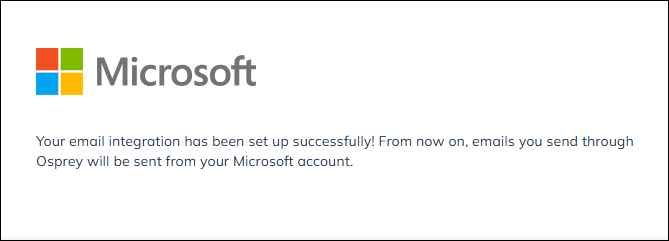
Once successful you will see a confirmation screen
Now you will be able to go back to Outlook and click Check again.
Export emails using the Office 365 add-in
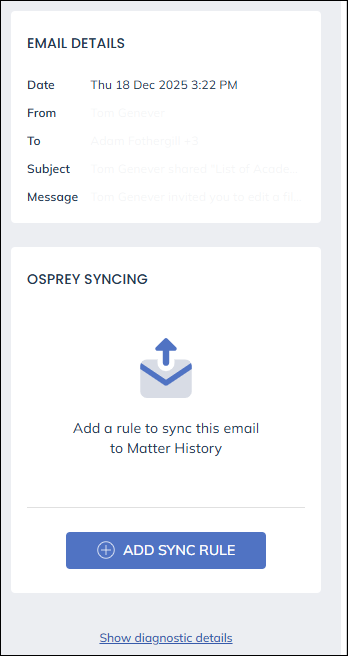
You will now see the details of the selected message, click Add sync rule
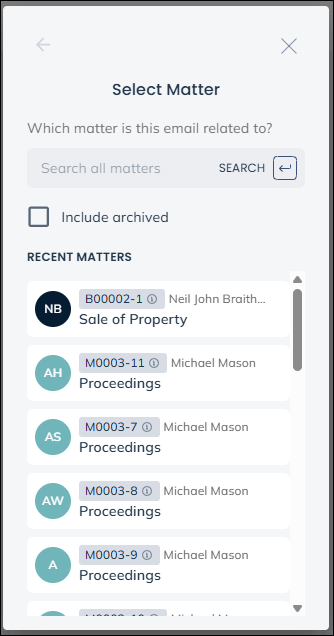
Search for and select the matter to save the message to
Choose Conversation if you wish any replies to also automatically be saved to Osprey, or Single email to just save the selected message.
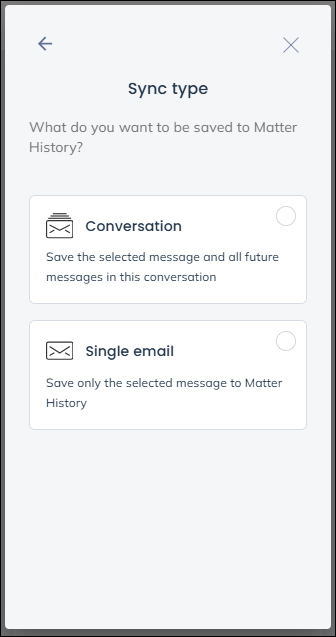
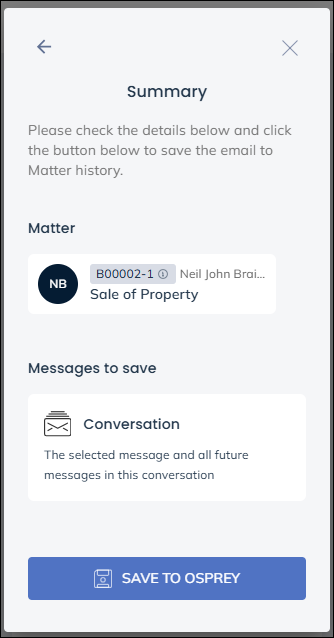
You will see a summary, click Save to Osprey to continue
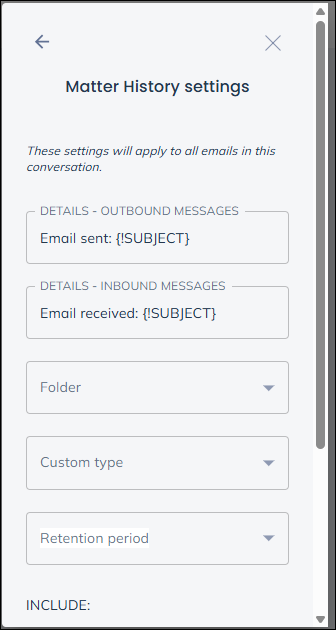
Here you can review how the message will be saved. Choose folder to select a matter history folder to save the message to, Choose Custom type to set a document type for matter history. Choose Retention period to set how long the message must be kept for.
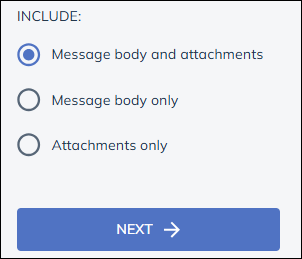
Scroll down to make choice on on what is to be saved, the message and attachments, message only, or attachments only. Click Next
View the summary and click Save to Osprey to save the message
Compose emails using the Office 365 add-in
When composing a new email, you can use the add-in to pull through information from Osprey, into Outlook.
First, open a new email, and locate the Setup E-mail icon.
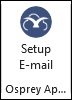
If you are not signed in, you will be asked to enter your credentials.
Now search for and select the appropriate matter
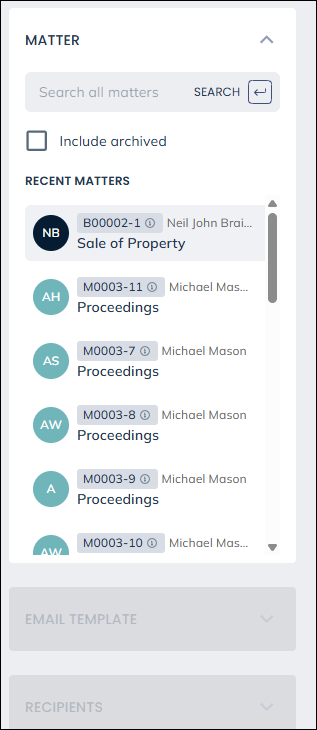
Once a client is selected, you can access any email templates, email addresses, matter history items or packages to bring into your email.
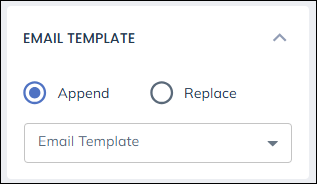
Click Email template to complete the message using the email templates from Osprey, you can choose to add it to existing text or replace it.
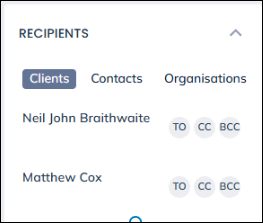
Left-click TO, CC or BCC to add the email the selected email address.
Scrolling further you can also attach any document or package available in Osprey.
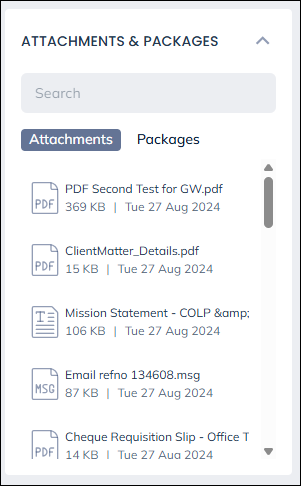
Select the document to add it to the message, when you choose a Word document, you will be presented with the option to attach it as a PDF or a Word document.

Export sent emails
Once an email has been sent, users will need to export from their Sent Items folder.
Time record your emails
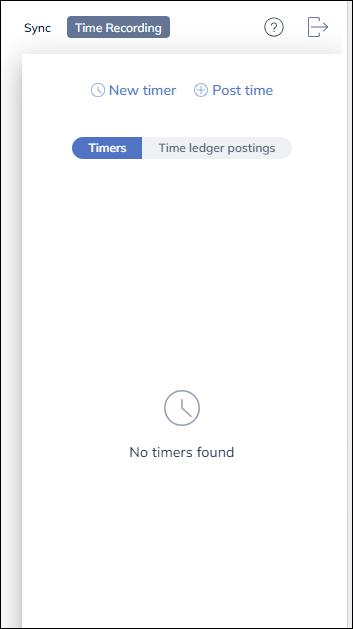
Should you wish to add a time posting to your incoming and outgoing messages choose Time Recording rather than Sync and you will see the same options to time record as you do in Osprey >