Enabling Tasks on Key Dates
Updated Apr 16th, 2026
Who is this guide for?
Case Management Supervisors and System Supervisors
Osprey allows you to set a workflow task to be run from the Key Dates page, this can enable smoother running of a workflow. This guide will show you how to set this up
As an example, let’s say that once you have received the confirmation from the client that they have signed all the required documents for completion and paid their balance, you then want to ensure that the following day you run the completion workflow task. The key date can be set to show the option to run your completion task as a Linked Task.
Set up the ability to run Tasks from Key Dates
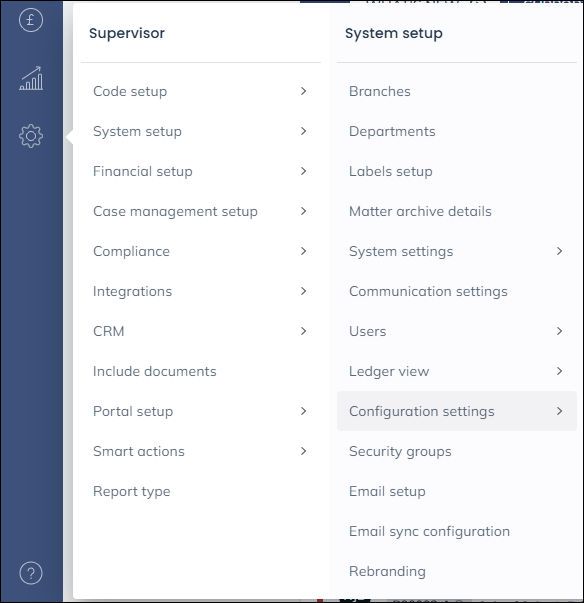
Firstly, we’ll need to turn on the ability to run a task from a Key Date. Navigate to Supervisor > System Set up > Configuration Settings.
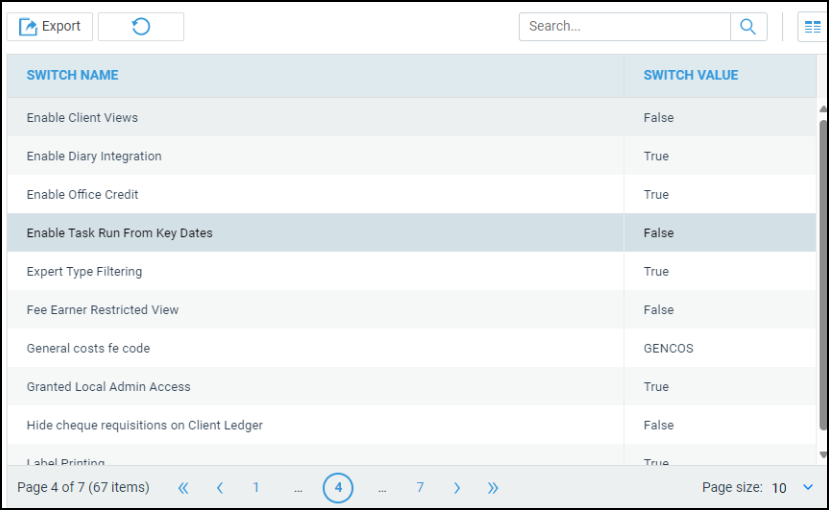
Locate the switch called Enable Task Run From Key Dates:
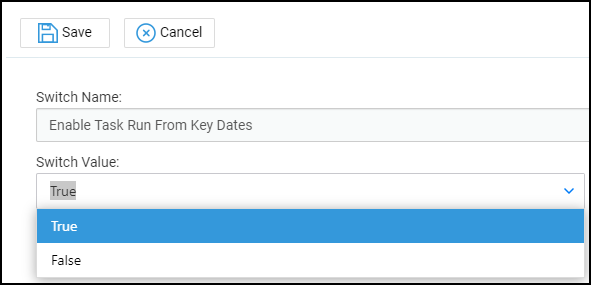
Right click, select Edit, and set this to True, then Save.
Set a Task to run from a Key Date
Now, navigate to Supervisor > Case Management Setup > Tasks.
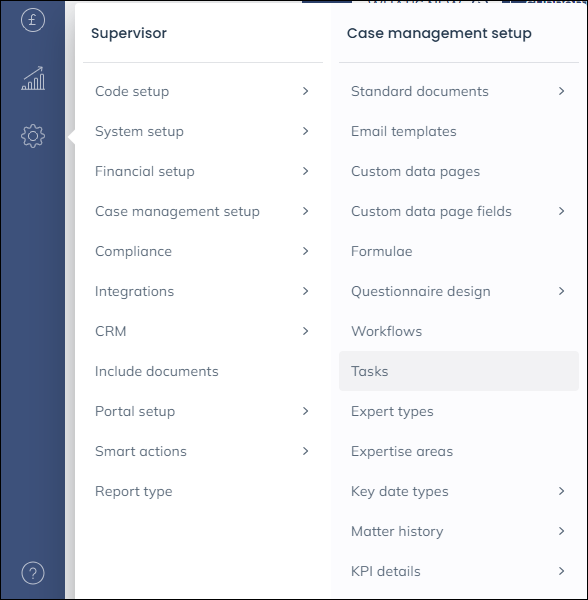
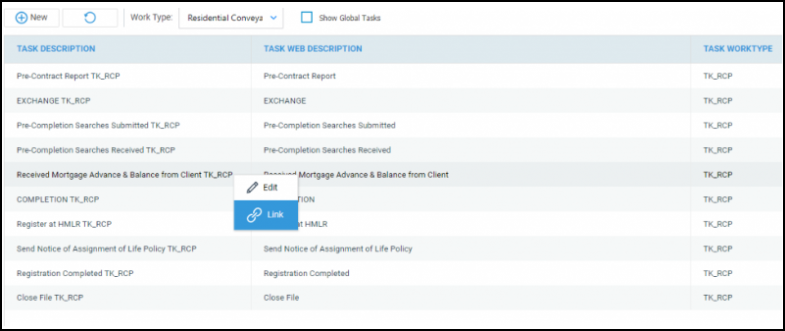
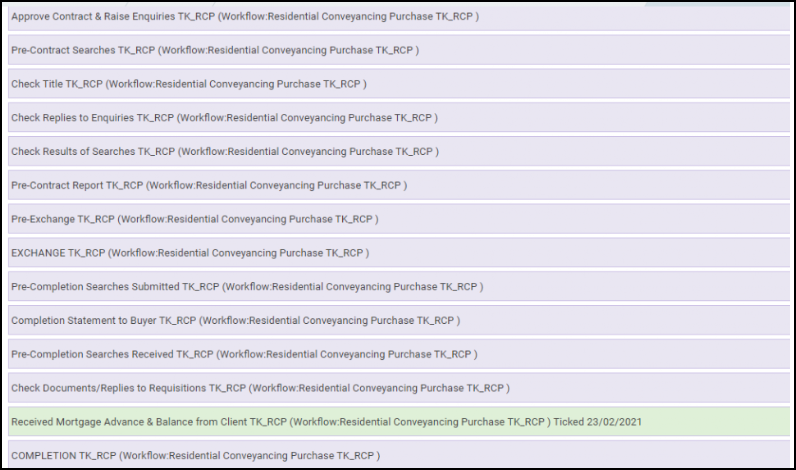
Select the Task you want to run from the key date, or create a new one. In the example below, we have chosen the previous task to the completion task in the Purchase workflow.
Right click the task you want to add the key date linked task to, and click Link:
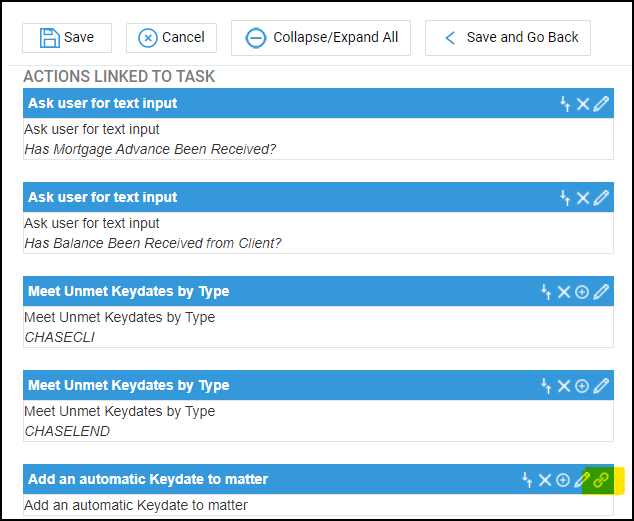
Then, link a Key Date action to the task. You will notice key date actions display a chain link icon on the right hand side of the options list:
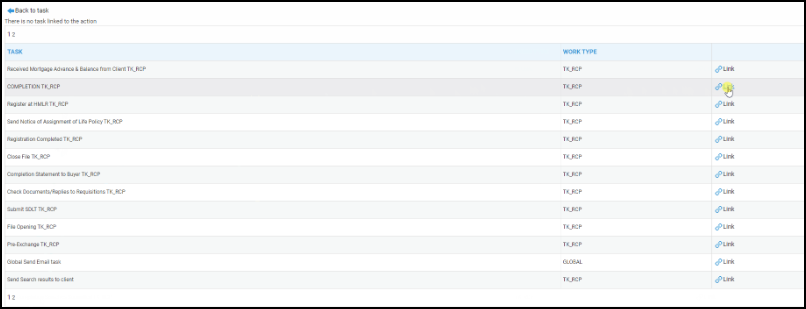
Select the chain link icon. You can now link the task (which must be of the same work type) that you want to run based on this key date.
Run the Workflow Tasks
Now that we have set up the key date to run the Completion task, we can run the task before it. From the Matter workspace select Workflows.

Run the task that contains your key date linked to task.
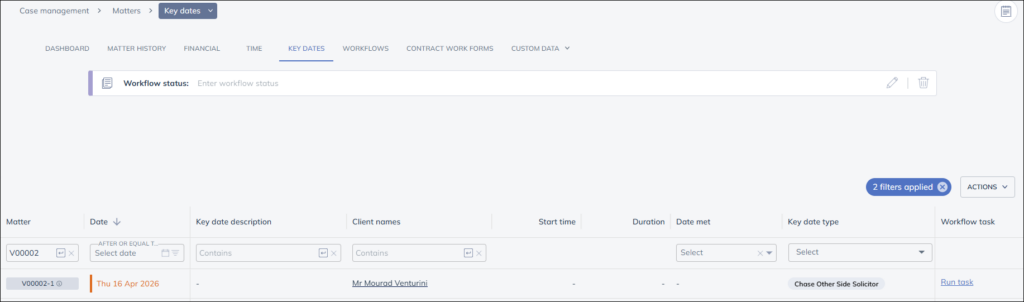
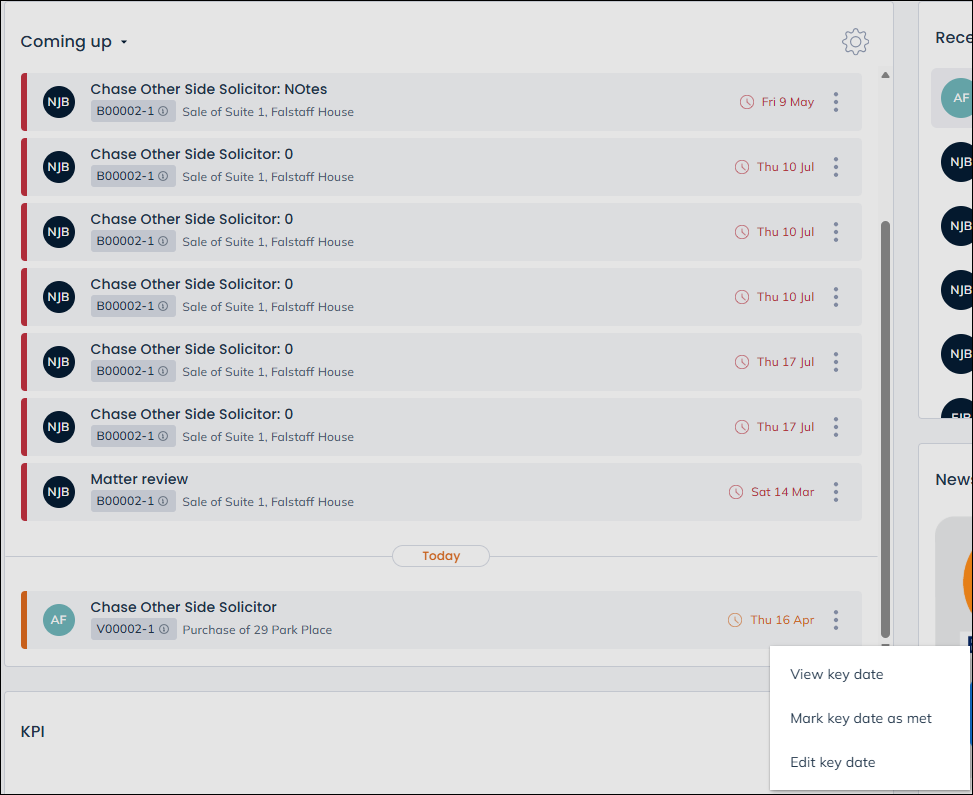
Now, when your fee earner selects to view this key date from their home page,
Run task can be selected to run the workflow task
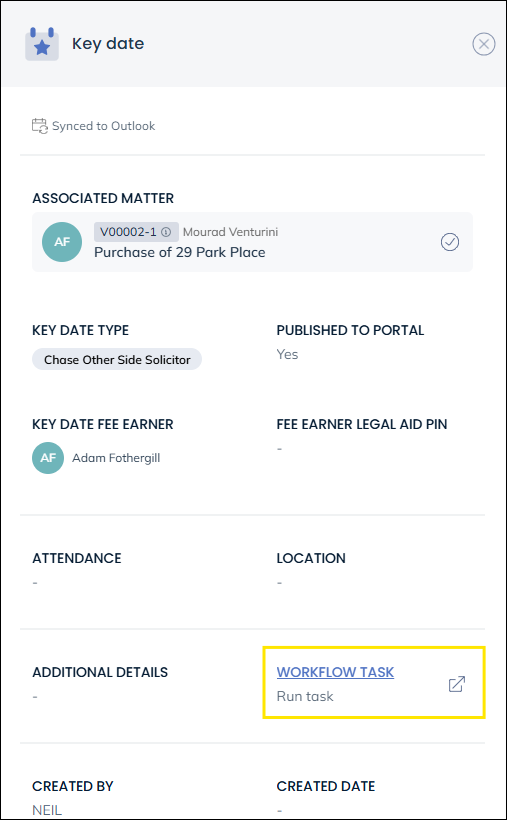
Alternatively Run task can be clicked from the key dates page in the Matter workspace