Post entries on your Nominal Ledgers
Updated Oct 16th, 2026
Who is this guide for?
Accounts Users and Accounts Supervisors
This guide will assist you with posting entries directly onto your nominal ledgers
Most nominal postings happen automatically when you post on a client ledger or purchase ledger. Direct nominal postings are used for the firm’s own transactions that don’t relate to a client matter or a supplier, such as bank charges, interest received, or moving a figure that was posted to the wrong nominal.
Before you start, check that the nominal and SAC you need exist and are in use. Our guide Managing Nominal Ledgers > may assist with this.
Select the nominal ledger
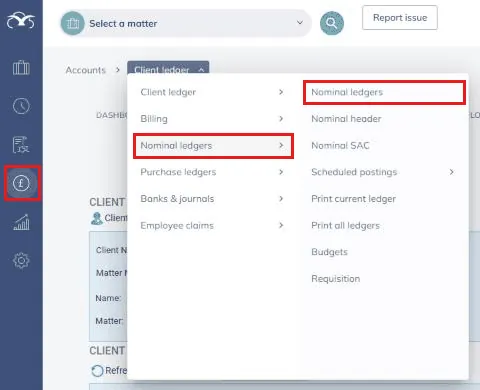
Click the Accounts menu on the left hand side menu, then choose Nominal ledgers followed by Nominal ledgers.
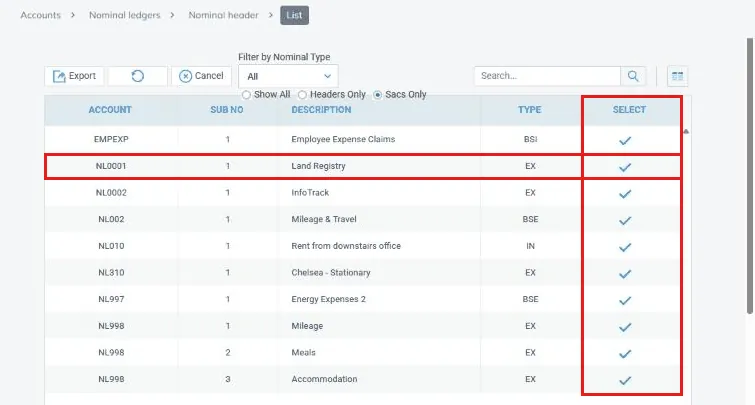
If you know the nominal code, type it into the Code box and click Go. Otherwise, click Account List, then click the tick in the Select column next to the nominal you want to post to.
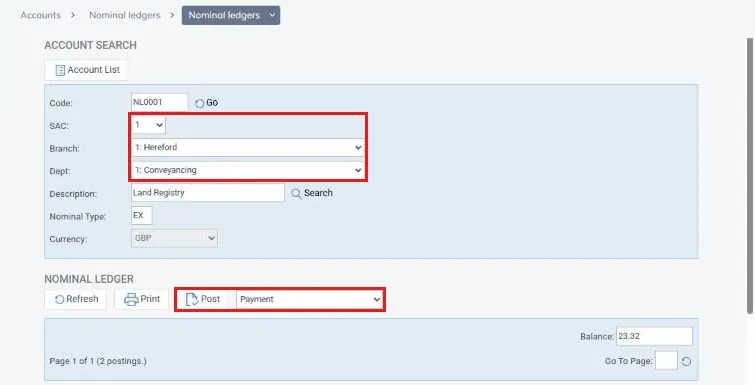
Choose the SAC, Branch and Dept for the posting. You can’t post while any of these are set to ALL, so the Post button and posting type drop down will only appear once all three have been selected.
Select the posting type you wish to use from the drop down list and then click Post. The posting screen will open in a new window.
Posting Types available
| Posting Type | Common Uses / What It Does |
| Payment | To show money paid out of an office bank against the nominal, e.g. bank charges or a direct debit. |
| Receipt | To show money received into an office bank against the nominal, e.g. bank interest or a refund. |
| Nominal Transfer from Account | To move a value out of the selected nominal into one or more other nominals, without any money going through a bank. |
| Nominal Transfer into Account | To move a value into the selected nominal from one or more other nominals, without any money going through a bank. |
| Provisional Journal DEBIT | An automatically reversing journal. Posts a payment to the selected nominal and a receipt to a second nominal, e.g. Accruals. |
| Provisional Journal CREDIT | An automatically reversing journal. Posts a receipt to the selected nominal and a payment to a second nominal, e.g. Prepayments. |
Post a payment or receipt
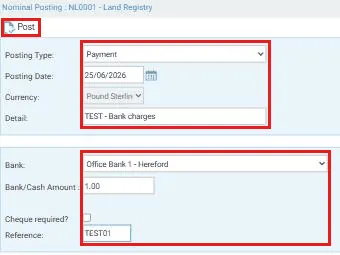
Choose Payment or Receipt and click Post. Complete the posting screen as follows:
| Field | What to enter |
| Posting Date | Enter the date of the transaction or use the calendar icon to pick a date. |
| Detail | A description of the posting, e.g. “Bank charges March”. |
| Bank | The office bank (or petty cash) the money is going out of or coming into. |
| Bank/Cash Amount | The amount of the payment or receipt. |
| VAT Amount | Only shown if the nominal SAC is vatable. Enter the total (including VAT) in Bank/Cash Amount and the VAT element here. |
| Cheque required? | Payments only. Tick this if a cheque needs to be produced for the payment. |
| Reference | A reference for the posting, e.g. the BACS or direct debit reference. |
Click Post at the top of the screen to save the entry.
Transfer between nominals
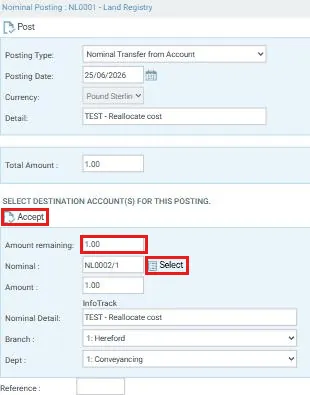
Choose Nominal Transfer from Account to move value out of the selected nominal, or Nominal Transfer into Account to move value into it, then click Post.
Enter the Posting Date, Detail and Total Amount. Then select the destination account: click Select and tick the nominal you want from the list, check the Amount, Nominal Detail, Branch and Dept, and click Accept. The line moves into the Destination Accounts Selected list (use Remove if you need to change it). To split the total across more than one nominal, enter a smaller amount and repeat until the Amount remaining is 0.00.
Enter a Reference and click Post.
To post a journal across several nominals in one go, our guide Posting Multi-line Journals > may assist with this.
Post a provisional journal
Provisional journals reverse automatically. They are used to move a nominal item from one period to another, for example a December electricity bill that doesn’t arrive until January. Each provisional journal creates four entries: a debit and a credit on the selected nominal, and the opposite of each on a second nominal, such as Accruals or Prepayments. Check that the second nominal exists before you post.
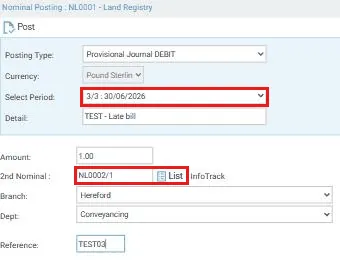
Choose Provisional Journal DEBIT or Provisional Journal CREDIT and click Post. Complete the posting screen as follows:
| Field | What to enter |
| Select Period | The financial period the item belongs in. Periods are listed with their end dates. |
| Detail | The reason for the journal, e.g. “Late bill”. |
| Amount | The amount to be journaled. |
| 2nd Nominal | The other nominal for the double entry, including the SAC (e.g. NL800/1). Click List if you don’t know the code. |
| Branch / Dept | Confirm the branch and department for the posting. |
| Reference | A reference for the posting, e.g. the invoice number. |
Click Post to save the journal.
Check your posting
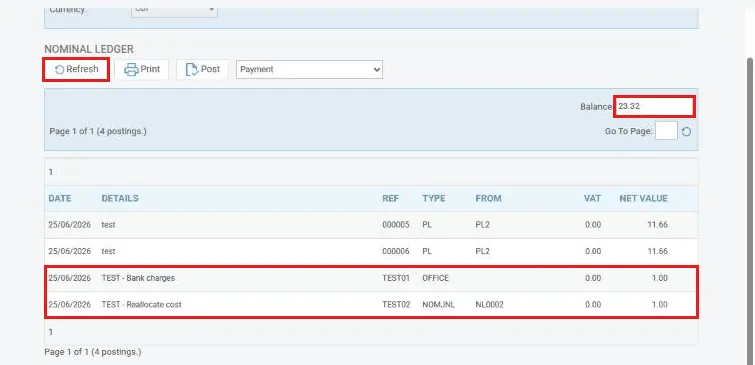
Once posted, click Refresh on the nominal ledger screen. The entry will appear in the list with its date, details, reference and value, and the Balance will update. Payments and receipts will also appear on the office bank you selected, ready for bank reconciliation. Our guide Understand Where Postings Appear on Nominal Ledgers > explains where each posting type shows.