Setting up Expenses & Overtime
Updated Apr 10th, 2026
Who is this guide for?
Any Users
This guide will take you through the process of setting up Expenses & Overtime in Osprey
System Settings
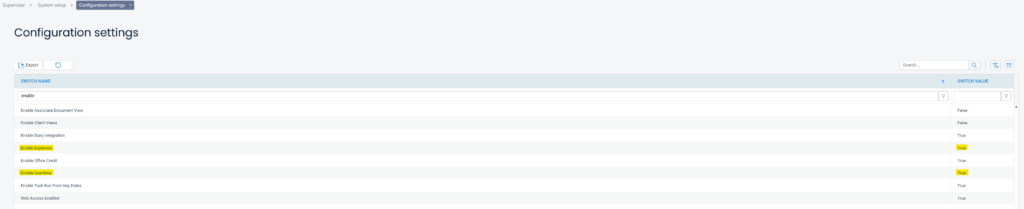
In order to use Expenses & Overtime there are 2 system settings switches that need to be switched “on”. Navigate to Supervisor > System Setup > Configuration Settings and ensure that the below highlighted switches are set to TRUE. If they are not, right click them, select edit and change to TRUE.
Access Template
There is a new access template area that governs the Expenses & Overtime permissions within Osprey.
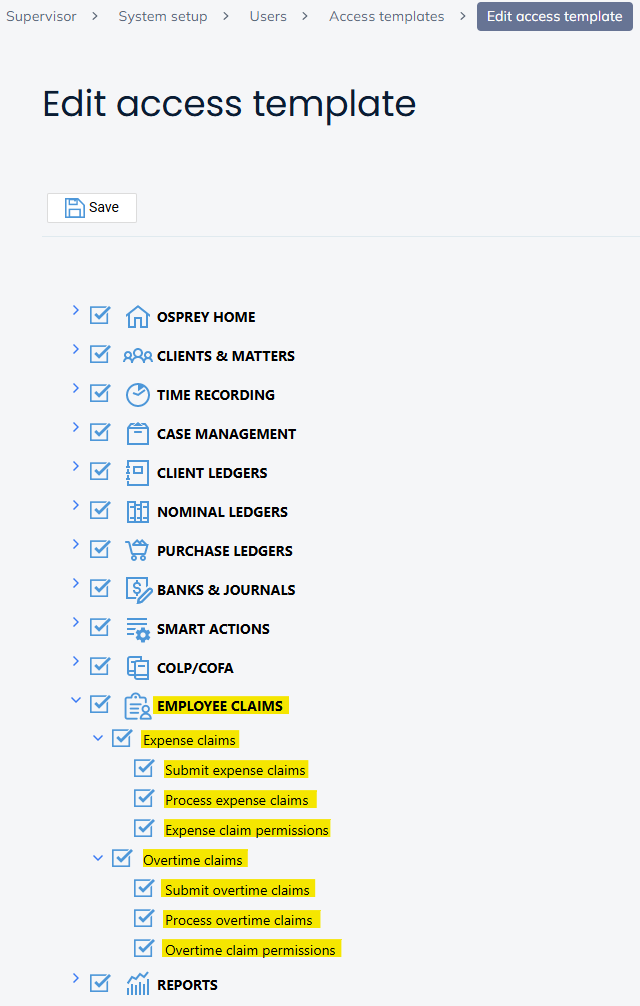
Submit Expense/Overtime claims – This allows the user to submit claims
Process Expense/Overtime claims – This allows the user to approve claims (subject to user permissions). Please note: When assigning this access area you must also assign Submit claims, it will not work if you give access to process but not submit.
Expense/Overtime claim permissions – This allows the user to set user permissions from within the Employee Claims area
Submitting and approving expenses & overtime
Now you’re ready to start using the feature. For more information on submitting and approving expenses and overtime, please visit this how-to guide here >