Sending an Email from Osprey
Updated Mar 24th, 2026
Who is this guide for?
Any Users
This guide will show you how to send emails directly from Osprey, with a copy saved directly into the matter history
Please ensure your SPF record is configured. Failure to do so may result in emails being flagged as illegitimate and may even be blocked by the recipient’s email provider. Your domain hosts will be able to make the changes detailed here > .
Accessing the send e-mail window
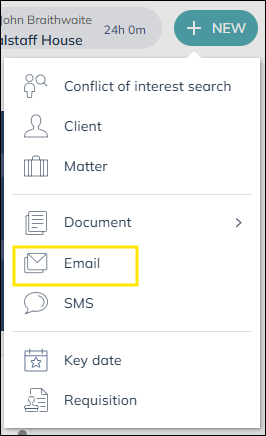
Click the New action button and then select Email.
First time use
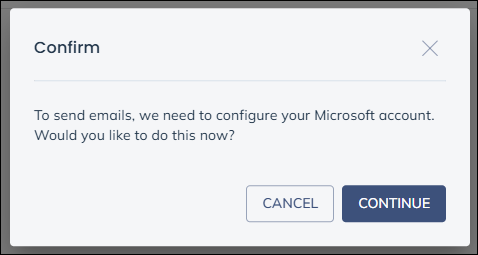
You will see a notice that your Microsoft account needs to be configured, click Continue to do so
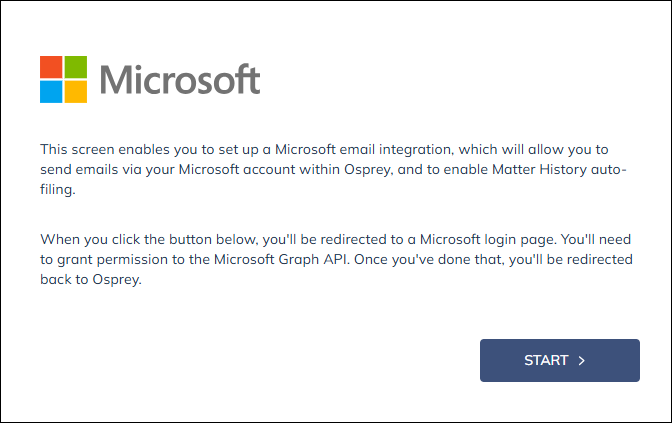
You will see a prompt from Microsoft, please click Start and sign into the Microsoft account you wish to connect to Osprey.
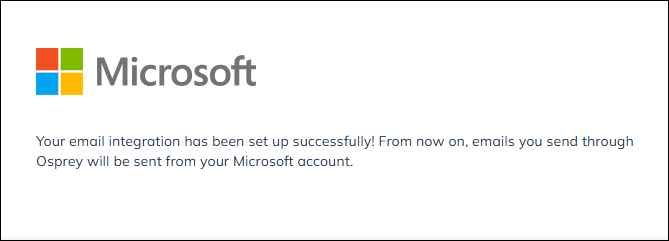
Once successful you will see a confirmation screen
Composing the email
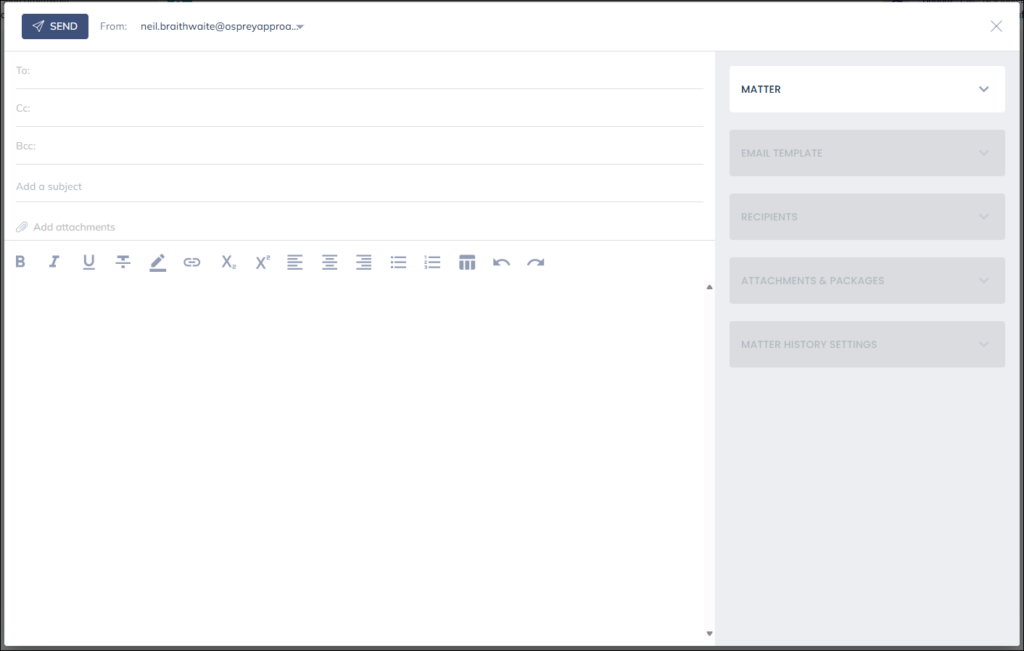
The panel on the right-hand side presents several sections:
Matter allows you to search for a matter or select a recently accessed matter from recent matters
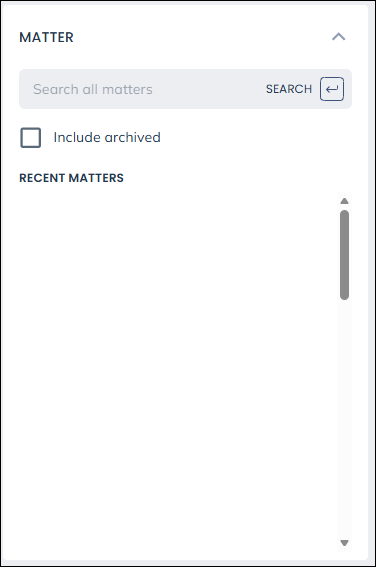
Once a matter is selected, you can access any email templates, email addresses, matter history items or packages to bring into your email.
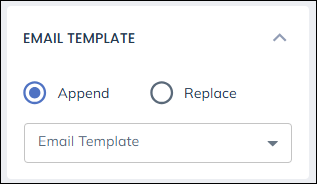
Click Email template to complete the message using the email templates from Osprey, you can choose to add it to existing text or replace it.
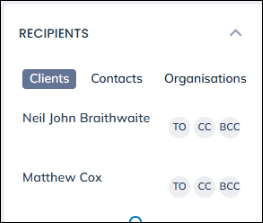
Click Recipients, left-click TO, CC or BCC to add the email the selected email address.
Scrolling further you can also attach any document or package available in Osprey.
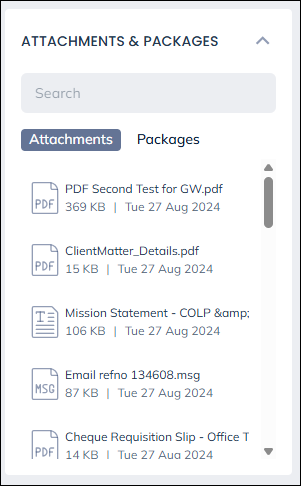
Select the document to add it to the message, when you choose a Word document, you will be presented with the option to attach it as a PDF or a Word document.

Matter history settings
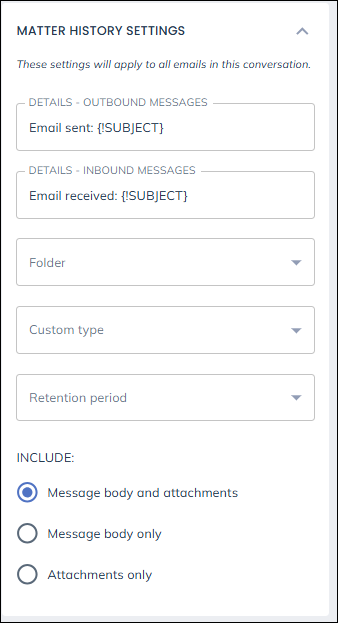
You can change the text shown in details for outgoing and incoming mail. You may also choose Folder to file the message in a folder. Custom type allows you to assign a category to the message. Retention period allows you to set an expiration date for when the message can be deleted.
You can also control what is saved by choosing Message body and attachments, Message body only or Attachments only.
Once sent, the email will automatically appear within the matter history and sync with sent items in Outlook
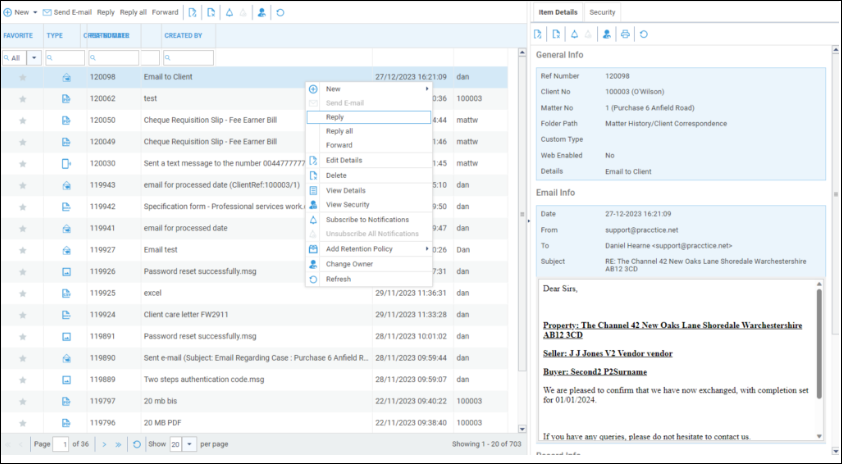
You may also reply to or forward messages.