Post entries on your Purchase Ledgers
Updated Oct 16th, 2026
Who is this guide for?
Accounts Users and Accounts Supervisors
This guide will assist you with posting supplier invoices, credit notes, payments and refunds to your purchase ledgers
Before you start, the supplier will need a purchase ledger set up. Our guide Managing Purchase Ledgers > may assist with this.
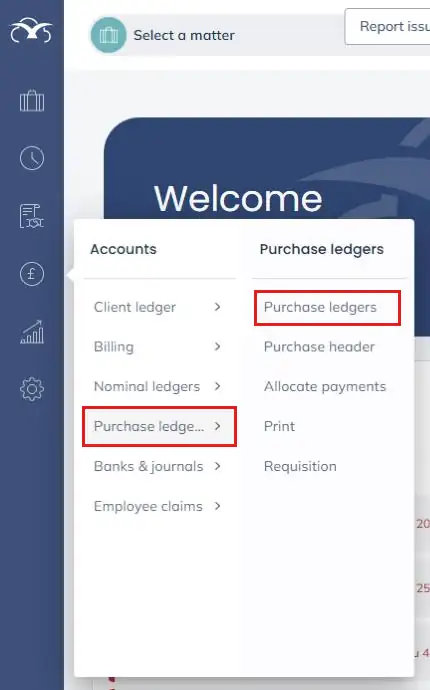
Navigate to the Accounts menu on the left hand side menu, then Purchase ledgers and click Purchase ledgers.
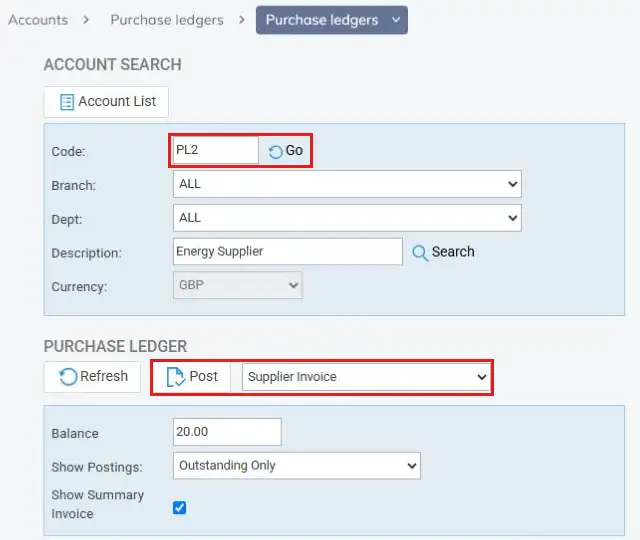
Enter the supplier’s purchase ledger code into the Code field and click Go. If you don’t know the code, click Account List or click Search to find the purchase ledger you wish to post to. Make sure the correct Branch and Dept are selected, then choose the posting type you need from the drop down list and click Post.
Posting types available
| Posting Type | Common Uses / What It Does |
| Supplier Invoice | To record an invoice you have received from a supplier. The cost is posted to one or more nominal ledgers and the amount is added to the balance you owe the supplier. |
| Supplier Credit Note | To record a credit note from a supplier, for example where you have been overcharged or have returned goods. This reduces the balance you owe and reverses the cost on the nominal ledger(s) you select. |
| Pay Supplier | To record a payment made to a supplier from your office bank (or petty cash). You can then allocate the payment against the invoice(s) it settles. |
| Supplier Refund | To record money a supplier has paid back to you, received into your office bank. |
Our guide Understanding where Postings Appear in Purchase Ledgers > explains which ledgers each posting type affects.
Posting a Supplier Invoice or Credit Note
A posting window will open. Check the Posting Date, then enter a Detail for the posting and the Total Amount inc. Vat from the invoice or credit note.
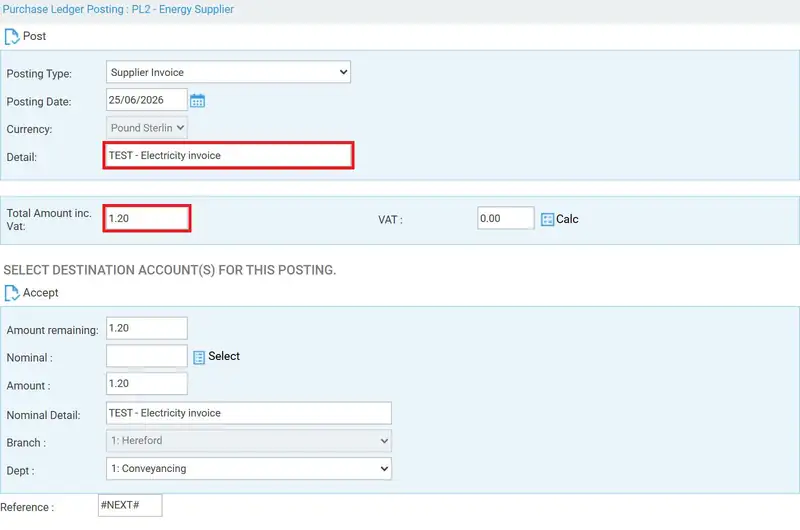
In the destination section, enter the nominal code into the Nominal field, or click Select and choose the nominal from the list using the tick in the Select column. The VATEX column shows whether each nominal is Vatable or Excluded.
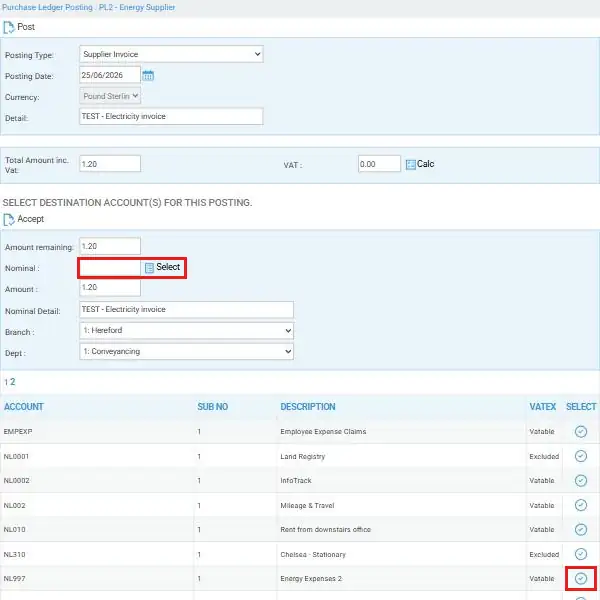
Click Calc to work out the VAT. The Amount remaining and Amount will update to the net figure. Change the Amount if you are splitting the invoice across more than one nominal, and amend the Nominal Detail, Branch and Dept if needed.
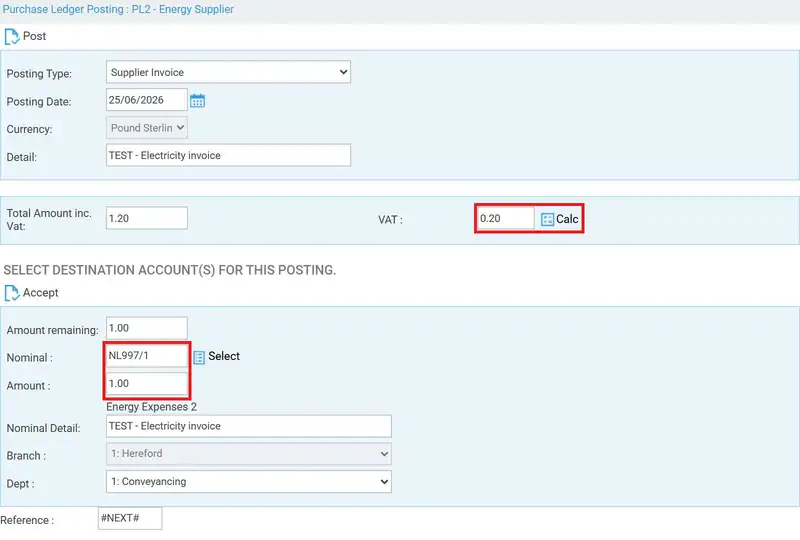
Please note: click Calc after you have chosen the nominal and before clicking Accept. If you accept the full amount first, the VAT will be added on top and the invoice will be posted for more than its total.
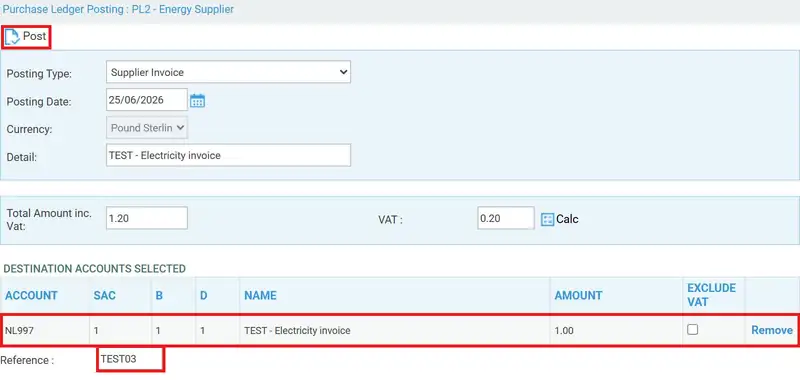
Click Accept to add the line to the Destination Accounts Selected table. If the invoice covers more than one nominal, repeat until the amount remaining has been fully allocated (our guide Posting Purchase Ledger Invoices > covers this in more detail). Tick Exclude VAT against any line that should not carry VAT, or click Remove to take a line off.
Leave the Reference as #NEXT# for the system to number the posting automatically, or overtype it with your own reference, such as the supplier’s invoice number. Click Post when you are done.
Posting a Supplier Payment or Refund
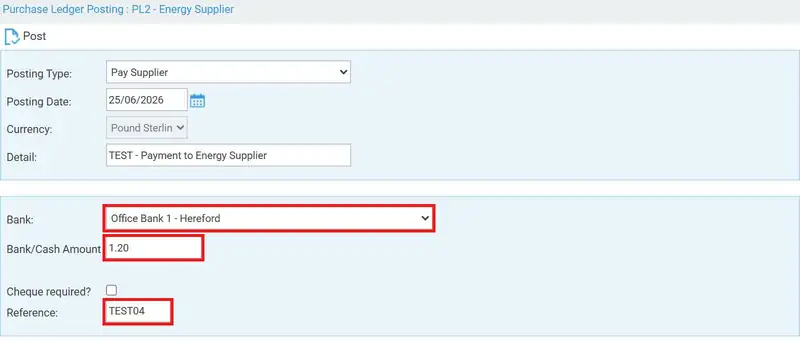
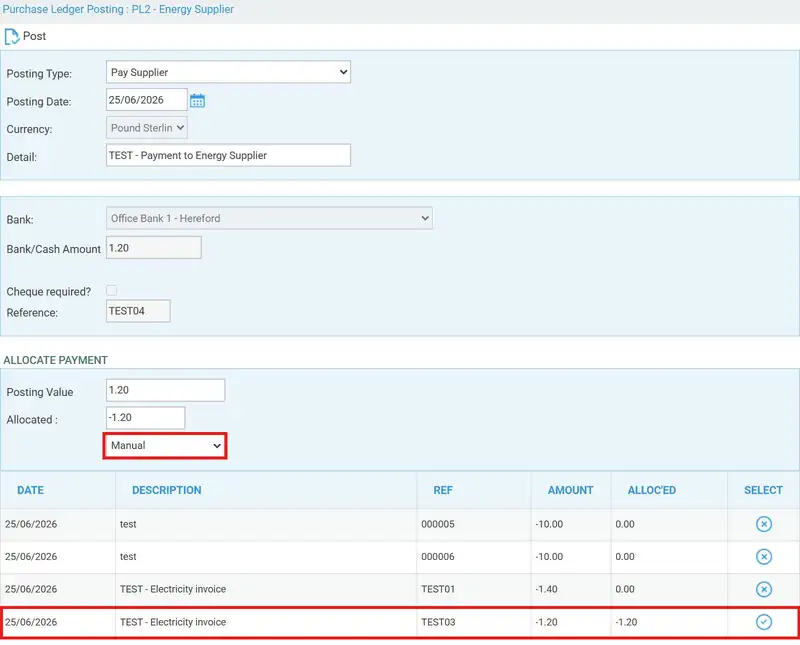
Select Pay Supplier (or Supplier Refund) from the drop down list and click Post. Enter the Detail, choose the Bank the money is leaving (or going into, for a refund) and enter the Bank/Cash Amount. For a payment, tick Cheque required? if you will be printing a cheque. Enter a Reference and click Post.
For a payment, an Allocate Payment section will then appear, listing the supplier’s outstanding items. Leave the drop down on Manual and click the icon in the Select column next to each invoice the payment covers, or choose Auto Allocate to let the system allocate it for you. The Allocated figure shows how much has been matched. Click Post again to complete the posting.
Viewing your postings
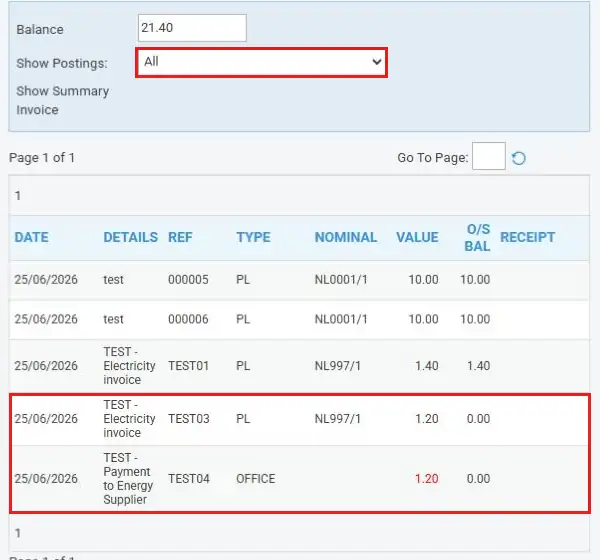
Once posted, the entries will appear on the purchase ledger. Change Show Postings to All to see items that have been fully paid as well as those still outstanding. The O/S BAL column shows how much is still owed on each item and the Balance shows the total owed to the supplier. If a payment has been allocated to the wrong invoice, see our guide Check and Change Purchase Ledger Allocations >.