Set your VAT Registration Type
Updated Nov 5th, 2026
Who is this guide for?
Accounts Supervisors and System Supervisors
This guide will assist you with setting your firm’s VAT registration type
The VAT registration type tells Osprey whether your firm accounts for VAT on the standard basis or uses cash accounting. It affects the figures on your VAT reports and returns, so please check with your accountant before you change it.
Before you start, make sure each of your branches has a VAT number. Any branch without one will not be included in your VAT returns. Our guide Amend the VAT Number on your Branches > explains how to add it.
Before you change it
- If your accountant asks you to switch between Standard and Cash Accounting, make the change straight after a month end.
- Purchase ledgers are not designed to work with cash accounting. See Purchase Ledgers with VAT Cash Accounting > before using them together.
- If you use cash accounting, the Reports: Cash Accounting VAT Received > report shows the VAT on money you have received.
Set the VAT registration type
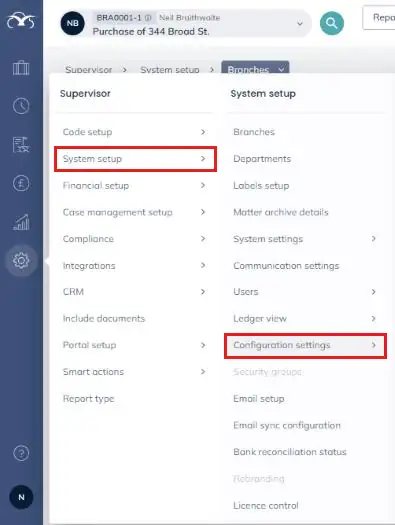
Hover over the Supervisor cog on the left hand navigation bar, then System setup, and click Configuration settings.
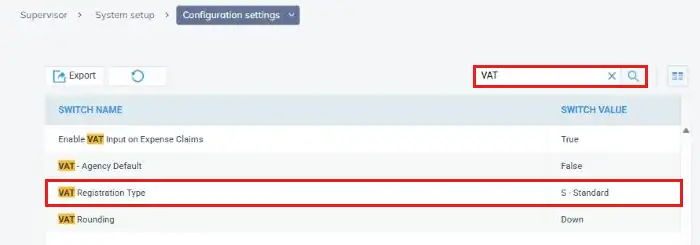
Type VAT into the search box and click the magnifying glass. The list now shows only the VAT settings, including VAT Registration Type and its current value.
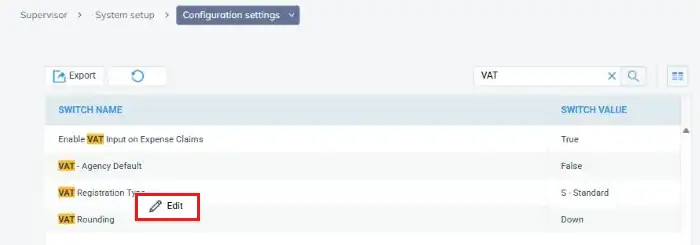
Right-click VAT Registration Type and click Edit.
Choose the registration type from the Switch Value drop-down, then click Save.
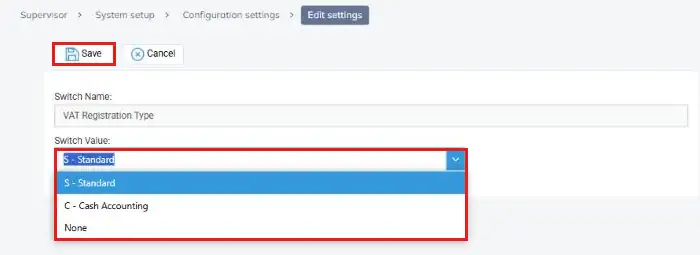
| Switch Value | When to use it |
| S – Standard | Your firm accounts for VAT when bills and invoices are issued. |
| C – Cash Accounting | Your firm is on the VAT cash accounting scheme, so VAT is accounted for when payments are received and made. |
| None | Your firm is not registered for VAT. |